
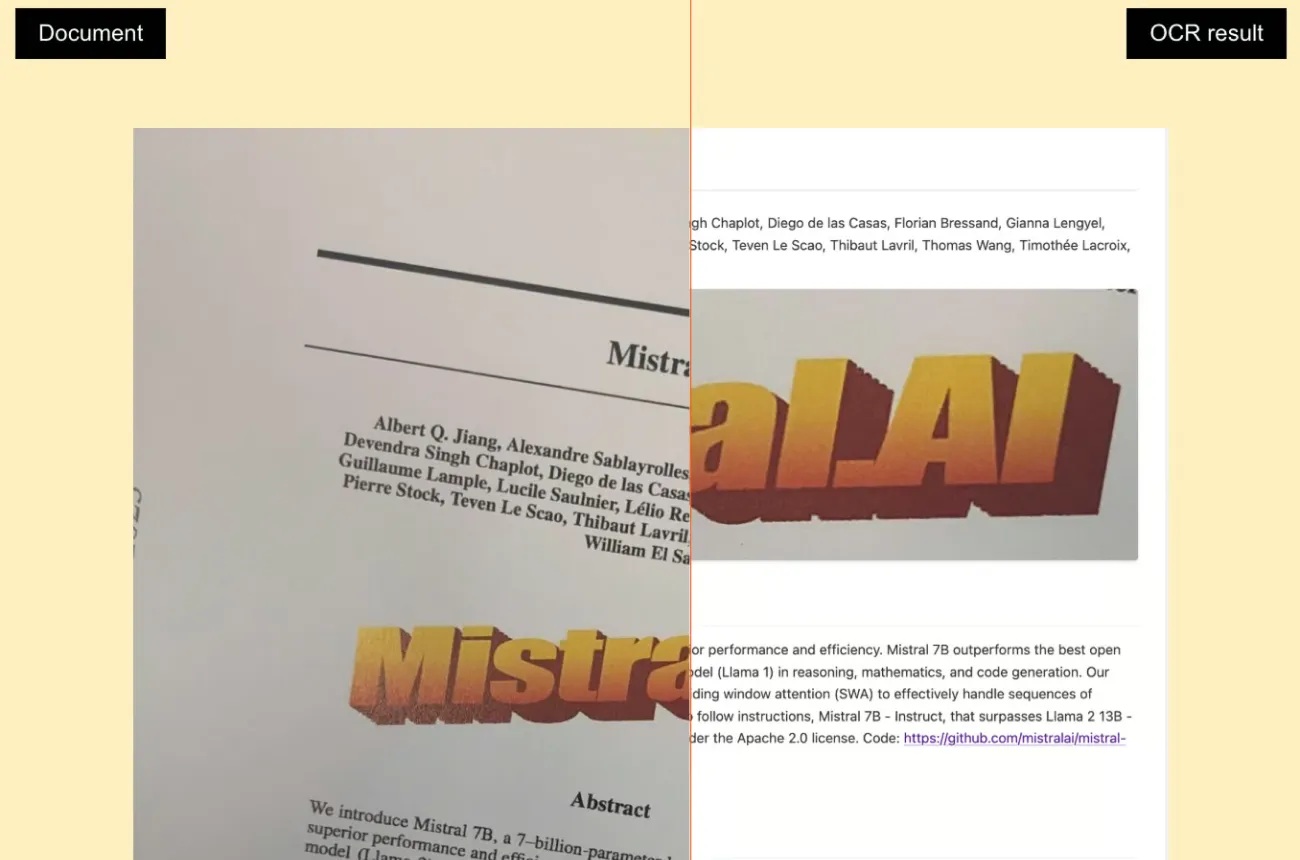
Mistral OCR takes a PDF or an image and returns clean markdown, page by page, with bounding boxes for every figure and table. It is an API model (mistral-ocr-latest, currently OCR 4.1), not something you download, and it is priced per thousand pages. This guide sets it up in Python and TypeScript, runs it on an invoice, a paper and a batch of scans, and answers the three questions that bring most people here: what it costs, whether you can run it locally, and what to use when you cannot.
Updated September 2026: model versions, pricing, limits, local and open-source options, FAQ. The original walkthrough and code are kept below.
OCR is the entry node of a context pipeline; deciding what to keep, chunk, and ground a model on is the work of Cohorte's Context Architecture course (E5).
What Mistral OCR is, and which version you are calling
The alias mistral-ocr-latest points at the newest model. As of September 2026 the lineup is OCR 4.1 (mistral-ocr-4-1), OCR 4.0 (mistral-ocr-4-0) and OCR 3 (mistral-ocr-3-2512); OCR 2 (mistral-ocr-2505) was retired on May 31, 2026, so pin a version in production and check the deprecation table before a batch. Inputs: PDF, DOCX, PPTX and other documents; PNG, JPEG and AVIF images; passed as a public URL, base64, or an uploaded file. Output: markdown with the structure preserved, images and tables as separate elements (tables as markdown or HTML), hyperlinks, confidence scores at page, block or word level, and, from OCR 4 onward, labeled structural blocks with bounding boxes. Forty-plus languages. The processor is built to:
• Preserve Document Structure: Extracts both raw text and metadata (headers, paragraphs, tables, etc.).
• Process Complex Layouts: Handles multi-column text and mixed content.
• Return Markdown Outputs: Facilitates easy parsing and rendering.
• Scale with High Accuracy: Suitable for large-scale document processing tasks.
Benefits
Using Mistral OCR provides several advantages:
• Accurate Extraction: Maintains the original document’s hierarchy and formatting.
• Ease of Integration: Comes with client libraries for Python, TypeScript, and supports direct API calls via curl.
• Versatile Document Support: Works with PDFs, images, and various uploaded document formats.
• Quick Setup: Integrates seamlessly into your workflows and pipelines.
Getting Started: Installation and Setup
Prerequisites
Before you begin:
• API Key: Obtain an API key from Mistral AI and set it as an environment variable (MISTRAL_API_KEY).
• Development Environment: Set up your Python (or Node.js) environment.
Installation (Python Example)
Install the Mistral client library:
pip install mistralaiCode Snippet: First Run in Python
import os
from mistralai import Mistral

# Set your API key from environment variables
api_key = os.environ["MISTRAL_API_KEY"]
client = Mistral(api_key=api_key)

# Process a document via URL
ocr_response = client.ocr.process(
    model="mistral-ocr-latest",
    document={
        "type": "document_url",
        "document_url": "https://arxiv.org/pdf/2201.04234"
    },
    include_image_base64=True
)

print(ocr_response)
This example initializes the client, sends a document URL for OCR processing, and prints the resulting markdown output along with document metadata.
Code Snippet: First Run in TypeScript
import { Mistral } from '@mistralai/mistralai';

const apiKey = process.env.MISTRAL_API_KEY;
const client = new Mistral({ apiKey: apiKey });

async function processDocument() {
    const ocrResponse = await client.ocr.process({
        model: "mistral-ocr-latest",
        document: {
            type: "document_url",
            documentUrl: "https://arxiv.org/pdf/2201.04234"
        },
        includeImageBase64: true
    });
    console.log(ocrResponse);
}

processDocument();
Example: Building a Simple OCR Agent
Below is a step-by-step example of creating a simple OCR agent in Python. This agent takes a document URL, processes it through Mistral OCR, and returns structured markdown content.
import os
from mistralai import Mistral

class SimpleOCRAgent:
    def __init__(self, api_key):
        self.client = Mistral(api_key=api_key)

    def process_document(self, document_url):
        response = self.client.ocr.process(
            model="mistral-ocr-latest",
            document={
                "type": "document_url",
                "document_url": document_url
            },
            include_image_base64=True
        )
        return response

if __name__ == "__main__":
    api_key = os.environ.get("MISTRAL_API_KEY")
    if not api_key:
        raise ValueError("Please set the MISTRAL_API_KEY environment variable.")

    agent = SimpleOCRAgent(api_key=api_key)
    document_url = "https://arxiv.org/pdf/2201.04234"  # Change as needed
    result = agent.process_document(document_url)
    print("OCR Result:")
    print(result)
Explanation:
• Initialization: The agent initializes with the API key.
• Processing: The process_document method sends the document URL to the Mistral OCR processor.
• Output: It prints the structured OCR result (in markdown format) including text and metadata.
Error Handling and Improvements
In a production setting, you might want to:
• Add exception handling for network issues.
• Validate the document URL.
• Parse the returned markdown to render in a UI.
Additional Use Cases with Implementation Details
1. Invoice Processing and Data Extraction
Mistral OCR can extract structured data from invoices, preserving tables and key fields like invoice numbers, dates, and totals. Once the OCR response is obtained, you can apply further parsing to extract the required information.
Python Code Snippet:
import re

def extract_invoice_details(markdown_text):
    # Use regular expressions to find key invoice details
    invoice_number = re.search(r"Invoice Number:\s*(\w+)", markdown_text)
    invoice_date = re.search(r"Invoice Date:\s*([\d/-]+)", markdown_text)
    total_amount = re.search(r"Total Amount:\s*\$?([\d,]+\.\d{2})", markdown_text)

    return {
        "invoice_number": invoice_number.group(1) if invoice_number else "Not Found",
        "invoice_date": invoice_date.group(1) if invoice_date else "Not Found",
        "total_amount": total_amount.group(1) if total_amount else "Not Found"
    }

# Assuming `ocr_response` contains a key 'pages' with markdown output
ocr_markdown = ocr_response.get("pages", [])[0].get("markdown", "")
invoice_details = extract_invoice_details(ocr_markdown)
print("Extracted Invoice Details:", invoice_details)
This snippet processes the OCR markdown to extract and print invoice details using regex matching.
2. Academic Paper Analysis and Summarization
Researchers can use Mistral OCR to convert academic papers into markdown format, then apply natural language processing (NLP) for further analysis or summarization. For instance, you might extract sections like the abstract, introduction, and conclusion.
Python Code Snippet:
def extract_section(markdown_text, section_title):
    # Simple extraction of a section based on title keywords
    pattern = rf"(#{1,6}\s*{section_title}.*?)(?=\n#|\Z)"
    match = re.search(pattern, markdown_text, re.DOTALL | re.IGNORECASE)
    return match.group(1).strip() if match else "Section not found"

# Extracting the Abstract and Conclusion
abstract = extract_section(ocr_markdown, "Abstract")
conclusion = extract_section(ocr_markdown, "Conclusion")
print("Abstract:\n", abstract)
print("\nConclusion:\n", conclusion)
This snippet demonstrates how to extract specific sections from the OCR markdown for further processing or summarization.
3. Bulk Document Processing
For large-scale document processing, you may want to process multiple documents in a batch. The following Python example loops over a list of document URLs, processes each with Mistral OCR, and stores the results.
Python Code Snippet:
document_urls = [
    "https://arxiv.org/pdf/2201.04234",
    "https://example.com/invoice1.pdf",
    "https://example.com/invoice2.pdf"
]

def process_documents(urls, agent):
    results = {}
    for url in urls:
        try:
            result = agent.process_document(url)
            results[url] = result
            print(f"Processed document: {url}")
        except Exception as e:
            results[url] = f"Error: {e}"
            print(f"Failed processing {url}: {e}")
    return results

bulk_results = process_documents(document_urls, agent)
print("Bulk Processing Results:", bulk_results)
This snippet shows how to handle multiple document URLs in a batch process with error handling.
4. Image-Based Document Processing
Besides PDFs, Mistral OCR can process images directly. You can either use local image files or image URLs. Here’s an example processing an image file.
Python Code Snippet:
import base64

def process_local_image(image_path, agent):
    # Open and read the image file in binary mode
    with open(image_path, "rb") as image_file:
        image_data = image_file.read()

    # Convert binary data to a base64 encoded string
    encoded_image = base64.b64encode(image_data).decode('utf-8')

    response = agent.client.ocr.process(
        model="mistral-ocr-latest",
        document={
            "type": "image_base64",
            "document": encoded_image
        },
        include_image_base64=True
    )
    return response

# Replace 'path/to/image.jpg' with the actual image file path
image_response = process_local_image("path/to/image.jpg", agent)
print("Image OCR Result:", image_response)
This snippet illustrates handling a local image file and processing it with Mistral OCR. Adjust the image encoding method as per your environment’s requirements.
Pricing and limits
Mistral OCR is billed per 1,000 pages, not per token. At launch (March 2025) the list price was $1 per 1,000 pages, with batch inference giving roughly twice the pages per dollar; Mistral does not print the current OCR rate on its main pricing page, so read the API pricing page on the day you budget a run. Practical rules from our batches: send big jobs through the Batch Inference endpoint (the discount is the point), pre-split scanned PDFs so a failed page does not fail a 400-page file, and log usage_info.pages_processed from every response so finance sees pages, not requests.
Can you run Mistral OCR locally or open source?
Not from the weights. Every OCR model in Mistral's catalog is "Premier", meaning API-only; none is published under Apache 2.0. Mistral does offer a self-hosting option, but selectively, for organizations with strict data-privacy requirements, through its sales team. If your constraint is "the document never leaves our network" and you are not an enterprise contract, the honest options are open tools: Docling (IBM, strong on clean PDFs and tables, exports markdown), Tesseract (fast, fine on printed text, weak on layout), PaddleOCR (good multilingual coverage), or an open vision-language model such as Qwen2.5-VL for messy scans, at a GPU cost. For local model serving in general, see our LM Studio local server guide. Rule of thumb: born-digital PDFs rarely need Mistral OCR at all; scans, photos and multi-column layouts are where it earns its price.
FAQ
Is Mistral OCR free?
No. It is a paid API billed per 1,000 pages. Trial credits on the platform let you test it on a few documents.
Is Mistral OCR open source?
No. The weights are not published; you call it through Mistral's API. For local or offline pipelines, see the alternatives above.
How is Mistral OCR priced?
Per 1,000 pages; $1 per 1,000 at launch, about half that through batch inference. Check the API pricing page for today's rate before budgeting a batch.
What file types does it accept?
PDF, DOCX, PPTX and other documents, plus PNG, JPEG and AVIF images, via URL, base64 or file upload.
Which model name should I use?
mistral-ocr-latest for experiments; a pinned version such as mistral-ocr-4-1 in production, because older versions get retired (OCR 2 was retired in May 2026).
Mistral OCR vs Tesseract vs Docling?
Tesseract for clean printed text at zero cost; Docling for born-digital PDFs with tables; Mistral OCR when the input is scanned, photographed, multi-column or multilingual and you need markdown with structure. Benchmark on your own documents before choosing.
Final Thoughts
Mistral OCR significantly simplifies the extraction of text and structural data from diverse document types. Its ability to return markdown-formatted output makes it an excellent tool for automated document analysis—if you’re processing invoices, summarizing academic papers, handling bulk document uploads, or working with images.
Until the next one,
Oghenetega AdugboMarch 13, 2025