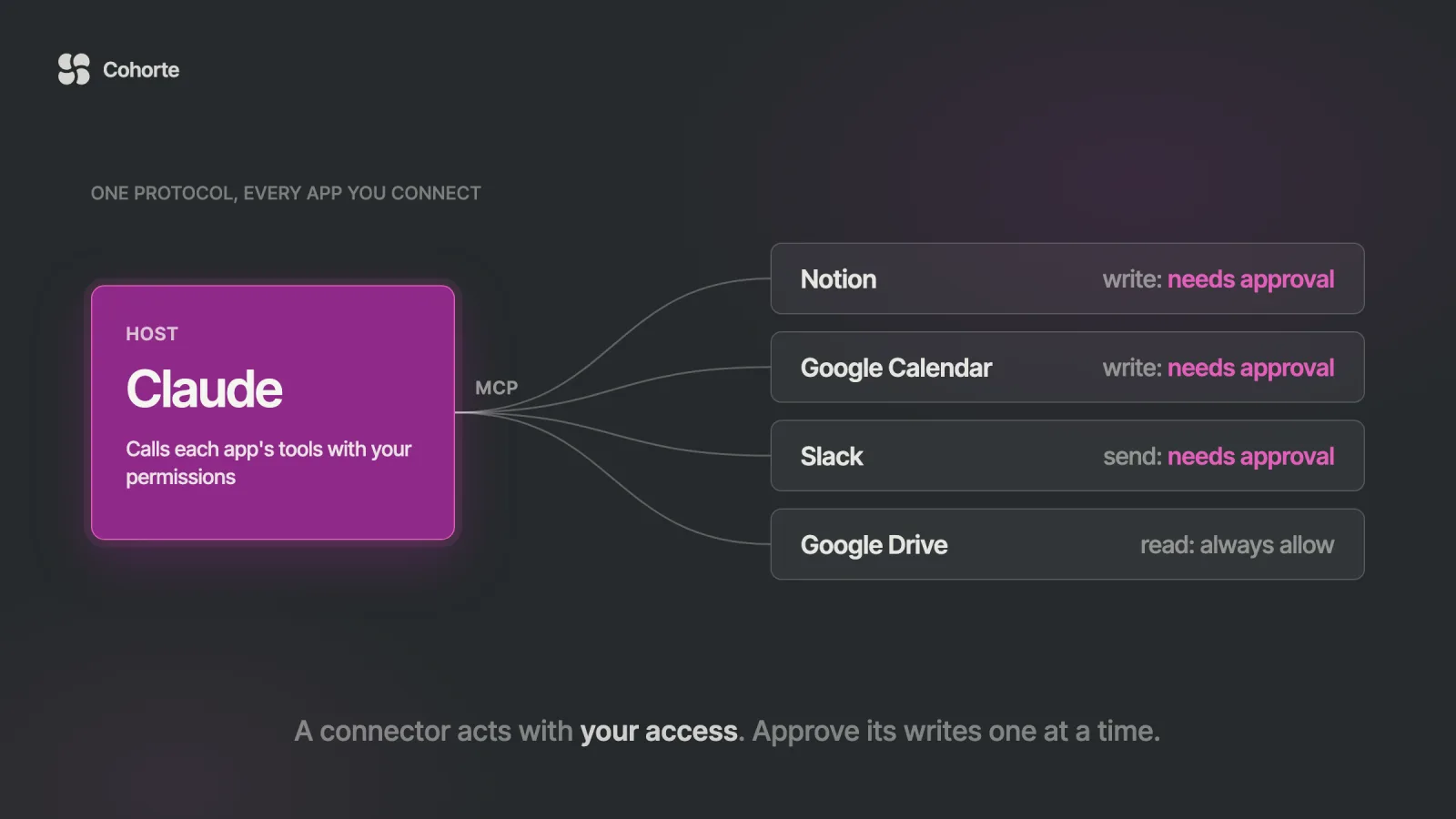
"Claude MCP" is shorthand for Claude connected to your apps through the Model Context Protocol (MCP), the open standard Anthropic introduced in November 2024. Each app publishes an MCP server that describes what it can do, and Claude calls those tools on your behalf: it searches Notion, adds a calendar event, or reads a Slack thread. In Claude, a configured connection is called a connector. There are three ways to add one: from the Connectors tab under Customize, by installing a desktop extension, or by pointing Claude Desktop or Claude Code at a server yourself.
A connector acts with your own permissions in each app, and Claude asks before it runs a tool unless that tool is set to always allow, by you or, on Team and Enterprise plans, by an owner. MCP is an open standard, governed since December 2025 by the Agentic AI Foundation under the Linux Foundation, so a server built for Claude can also work in ChatGPT, Cursor, Gemini, Microsoft Copilot and Visual Studio Code.
Before MCP, my week with AI assistants had a lot of copying in it. I pasted a meeting agenda into the chat, pasted my calendar after it, then carried the answer back to the tool where the work lived. Claude could reason about the project plan perfectly well. It just could not see it.
So for this guide I connected Claude to our team's Notion workspace and gave it three jobs. It built a content calendar from one prompt, moved nine sprint tasks at planning, and summarized a month of planned posts. Every write stopped for my approval first. The screenshots below come from that session, and the rest of the guide explains what happened underneath and what to check before you connect anything.
How MCP works: hosts, clients and servers
The easiest way to picture MCP is as a shared language between AI applications and the software they need to reach. Before it, every pairing of an assistant and an app needed its own integration. A Notion integration built for one assistant was useless to the next, and every vendor kept rebuilding the same plumbing.
MCP turns that multiplication into addition. An app exposes its capabilities once, as an MCP server, and any AI product that speaks the protocol can use it. People compare it to USB-C, one port for many devices. The comparison holds until security comes up, because a cable cannot be talked into anything by a malicious document, and an AI model can.
The specification names three roles:
- Host: the application you are using, such as Claude on the web, Claude Desktop or Claude Code. It manages connections and keeps them apart.
- Client: the part of the host that holds one connection to one server, keeping each server's traffic separate.
- Server: the program that wraps an outside service, such as Notion, Google Calendar or a Postgres database, and describes what it can do.
Servers offer three kinds of capability:
| Primitive | What it is | Who decides when it is used | Example |
|---|---|---|---|
| Tools | Actions the model can call | The model, with your approval | Create a Notion page, add a calendar event |
| Resources | Data the app can pull in as context | The application | A file, a database record, a page's contents |
| Prompts | Reusable templates a server offers | The user | A "summarize this project" workflow |
In daily use, tools do most of the visible work. When I ask Claude to add tasks to a Notion board, it reads the tool descriptions the Notion server published, picks one, fills in the arguments and asks my permission before running it.
What changed in 2026: a stateless protocol and a neutral home
If you read an MCP explainer from 2025, one detail is out of date. As a Claude user you will not notice the change, so skim ahead if you only want the setup. The 2026-07-28 specification made the protocol stateless. The opening handshake and the session ID are gone, and each request now carries its own protocol version and client details. Any server instance behind an ordinary load balancer can answer it.
For teams running their own servers it matters, because an MCP server can now scale like any other web service. The same release tightened the authorization rules, made list results cacheable and added a formal extensions framework. It also deprecated three older features, Sampling, Roots and Logging, which keep working for at least twelve months. In the release post, the maintainers put downloads of the four main SDKs at close to half a billion a month.
The governance moved too. On December 9, 2025, Anthropic donated MCP to the Agentic AI Foundation, a directed fund under the Linux Foundation that Anthropic, Block and OpenAI co-founded. MCP sits there next to Block's goose agent and OpenAI's AGENTS.md. Technical decisions stay with the existing maintainers, through the Specification Enhancement Proposal process, and the foundation provides a neutral home and infrastructure.
The part that matters for you is portability. At the time of the donation the project counted more than 97 million monthly SDK downloads and about 10,000 active servers. ChatGPT, Claude, Cursor, Gemini, Microsoft Copilot and Visual Studio Code all support it, so what you learn configuring connectors in Claude carries over to the other tools you use.
Three ways to connect Claude to an MCP server
The right route depends mostly on where the server runs. A remote server lives on the internet, usually operated by the app's vendor. A local server runs on your own machine, which is what you want for files, local databases or anything behind a firewall.
| Method | Where it works | Server type | Effort | Best for |
|---|---|---|---|---|
| Connectors directory and custom connectors | Claude on the web, Desktop and mobile | Remote | Minutes, no code | Mainstream apps |
| Desktop extensions (.mcpb) | Claude Desktop on macOS and Windows | Local | One-click install | Local files, apps and tools |
| Manual configuration | Claude Desktop config file, Claude Code | Local or remote | A JSON edit or one command | Developers and community servers |
Method 1: the connectors directory
This is where I tell most people to start. The directory is a curated list, and each connector's page says what it is for and whether it can read, write or both.
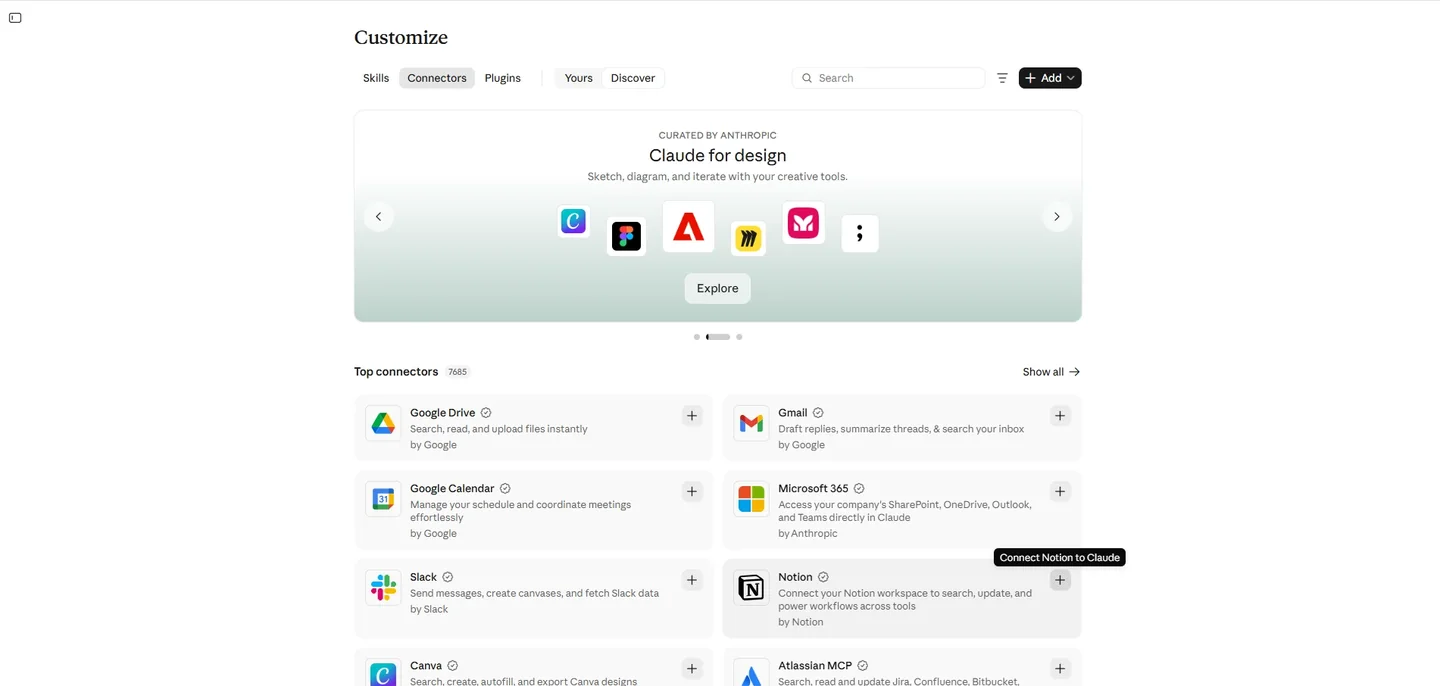
- In a chat, click +, hover over Connectors and choose Manage connectors. You can also open Customize and then Connectors.
- Browse the directory, pick a connector and read what it can do.
- Click + or Connect, sign in to the service and approve the access it asks for.
- In each new conversation, check that the connector is switched on under the + menu.
If the app you need is missing but offers a remote MCP server, add it yourself as a custom connector by pasting the server's URL. Custom connectors are available on every plan, and the free plan allows one. One detail catches teams out: Claude reaches a custom connector from Anthropic's cloud. The server has to be reachable over the public internet, and if it sits behind a firewall, Anthropic's IP addresses have to be on the allowlist. A server that only exists on a private network or a VPN will not connect.
Method 2: desktop extensions
Running a local MCP server used to mean installing Node.js, editing a config file and restarting the app. Desktop extensions package a whole local server, dependencies included, into a single .mcpb file (MCP Bundle, formerly .dxt). Claude Desktop ships its own Node.js runtime, so you do not need one installed.
To install one, open Settings in Claude Desktop, then Desktop app, and click Manage next to Extensions to browse the built-in directory. You can also double-click a downloaded .mcpb file. The format is open source and now lives under the MCP project on GitHub, so other desktop AI apps can adopt it.
Method 3: manual configuration
Many community servers are never packaged, so the manual route still earns its place. In Claude Desktop, open Settings from the Claude menu in your system's menu bar, then Developer, then Edit Config. Add the server's block under mcpServers in claude_desktop_config.json, save, and quit the app fully before reopening it. Most server READMEs give the exact block to paste.
In Claude Code, one command does the same job:
claude mcp add --transport http notion https://mcp.notion.com/mcpAdd --scope user to make a server available in every project, or --scope project to write it to a shared .mcp.json file your team can commit. claude mcp list shows what is configured, and typing /mcp inside a session lets you sign in and check each server's status.
A worked example: running a content calendar in Notion through Claude
I picked Notion because it is both a knowledge base and a database, so one connector exercises reading, creating and changing data. Notion runs its own hosted MCP server, authorized with OAuth, and documents every tool Claude can call. The workspace is our team's own: first Claude builds something new, then it changes records we already use.
Step 1: connect Notion
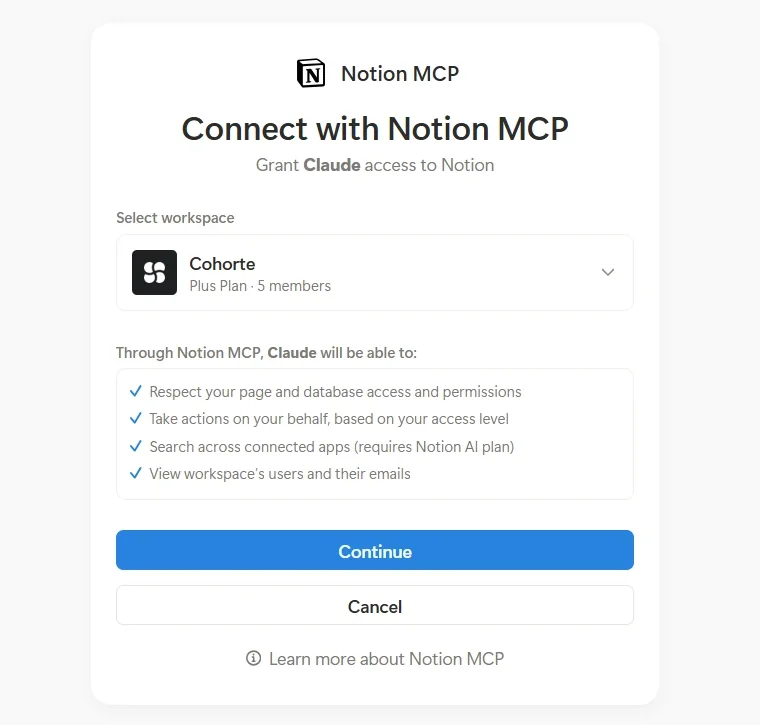
In Claude, open Customize, then Connectors, find Notion and click the plus button. Notion then asks which workspace to connect. Choose carefully here, because Claude gets exactly what your Notion account can see and edit.
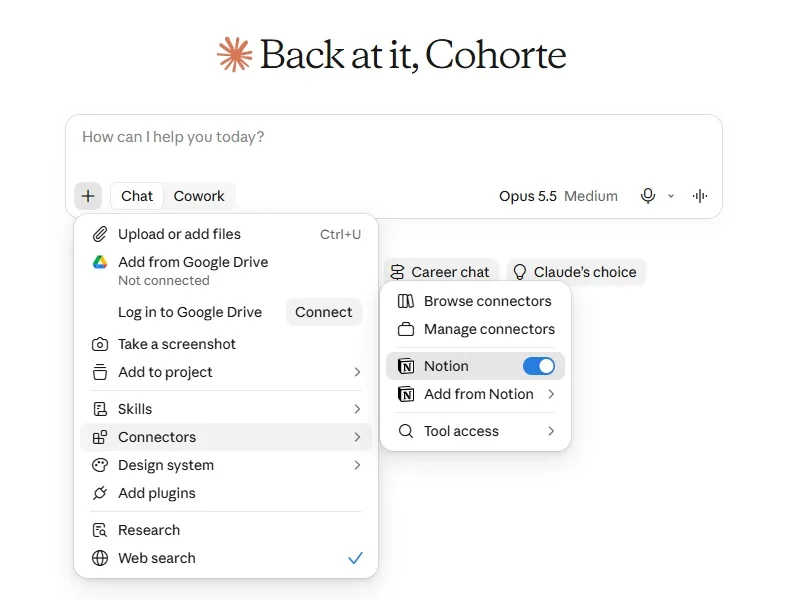
Back in a chat, open the + menu, then Connectors, and make sure Notion is switched on for the conversation. In Claude Code, the command from the previous section followed by /mcp does the same.
Step 2: build a database from one prompt
A prompt like this gives Claude everything it needs:
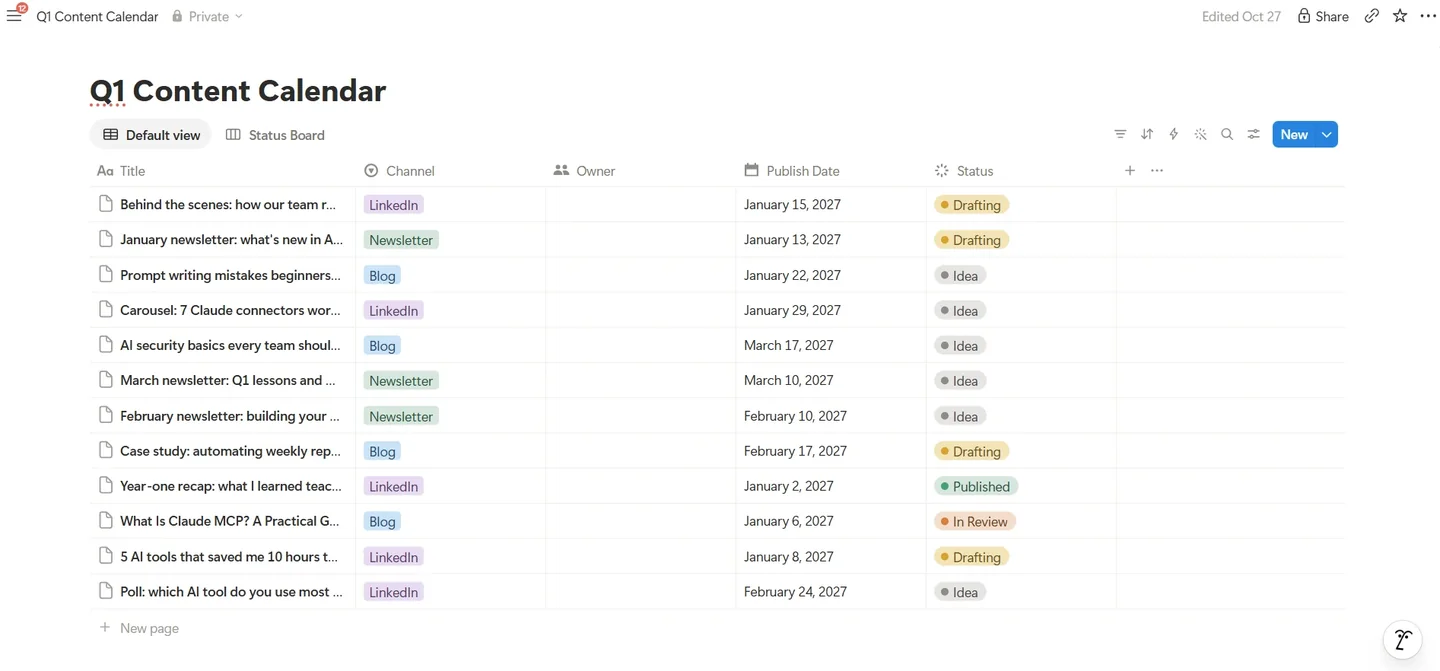
Create a Notion database called Q1 Content Calendar with properties for Title, Channel (Blog, LinkedIn, Newsletter), Owner, Publish Date and Status (Idea, Drafting, In Review, Published). Then add a board view grouped by Status.
Claude chains two tools here. It calls notion-create-database to create the database and its properties, then notion-create-view to add the board. The view tool supports ten view types, including table, board, calendar, timeline and chart.
Step 3: change existing work on a sprint board
Editing what already exists is the pattern I use most. Our sprint board holds every task for the current and upcoming sprints, each with an owner, a priority, a due date and a status. At sprint planning, the committed work has to leave the backlog:
In my Sprint Board, move every Sprint 02 task that's still in Backlog to Planned, and add a board view grouped by Owner.
Claude first reads the board to learn its properties and find the matching tasks. It then calls notion-update-page on each task and notion-create-view for the new board. Each status change is a write, so an approval card appears before anything moves.
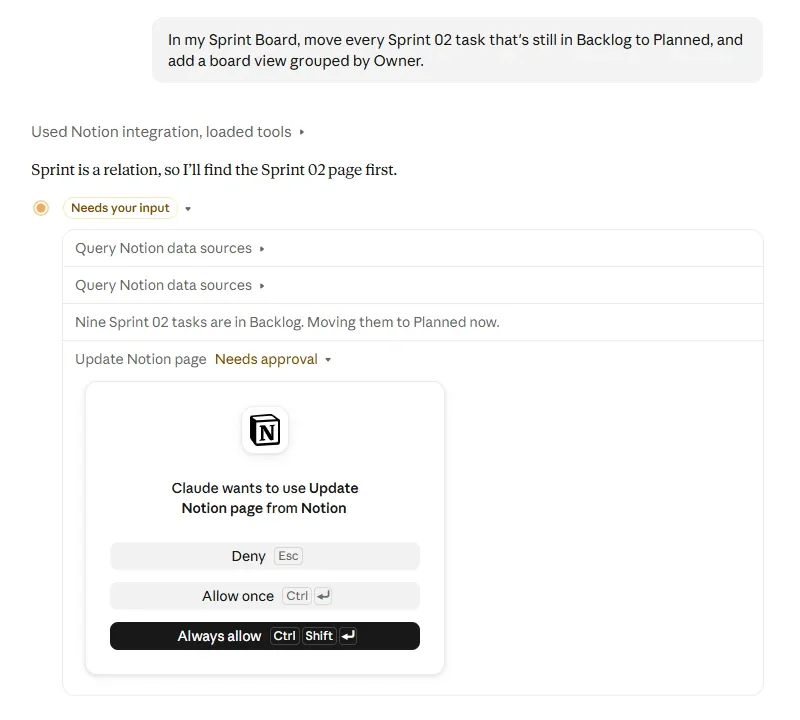
This step taught me the most about prompts. "Tidy up the sprint" makes Claude guess what tidy means. "Move Sprint 02 Backlog tasks to Planned" names the board, the sprint, the starting status and the target, so there is nothing left to interpret.
Step 4: search and summarize what is already there
The third pattern reads instead of writing. By now the calendar holds posts across three channels, and I want a quick read on January without clicking through every card:
Search my Notion for the Q1 Content Calendar and summarize what's publishing in January, grouped by channel. Flag anything still in Drafting.
Claude calls notion-search to find the calendar, then reads its entries before answering. The briefing sorts January's seven posts by channel and flags the three still in Drafting, with the most urgent one first.
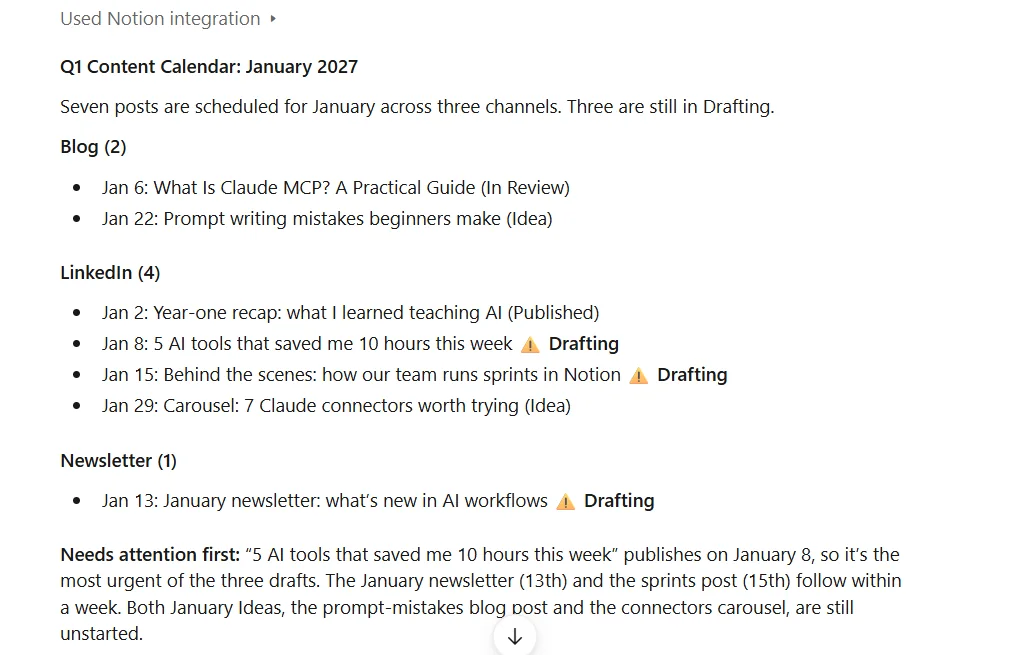
Reading the entries themselves, instead of trusting a search snippet, is a habit worth asking for with any connector. The snippet tells Claude where to look, and the entries tell it what is there.
What the example shows
One connector covered three jobs: building structure, changing records and retrieving what the team had written down. Add a second connector, such as Google Calendar for publish dates or Slack for review requests, and Claude can move information between tools in one conversation.
Two limits are worth knowing before you plan a workflow around this. A few Notion tools depend on your plan: querying several databases at once, or searching connected apps such as Slack and Google Drive, needs a Business or Enterprise plan with Notion AI. And every tool call counts toward Notion's standard API rate limits, so very large batch jobs can slow down or stop partway.
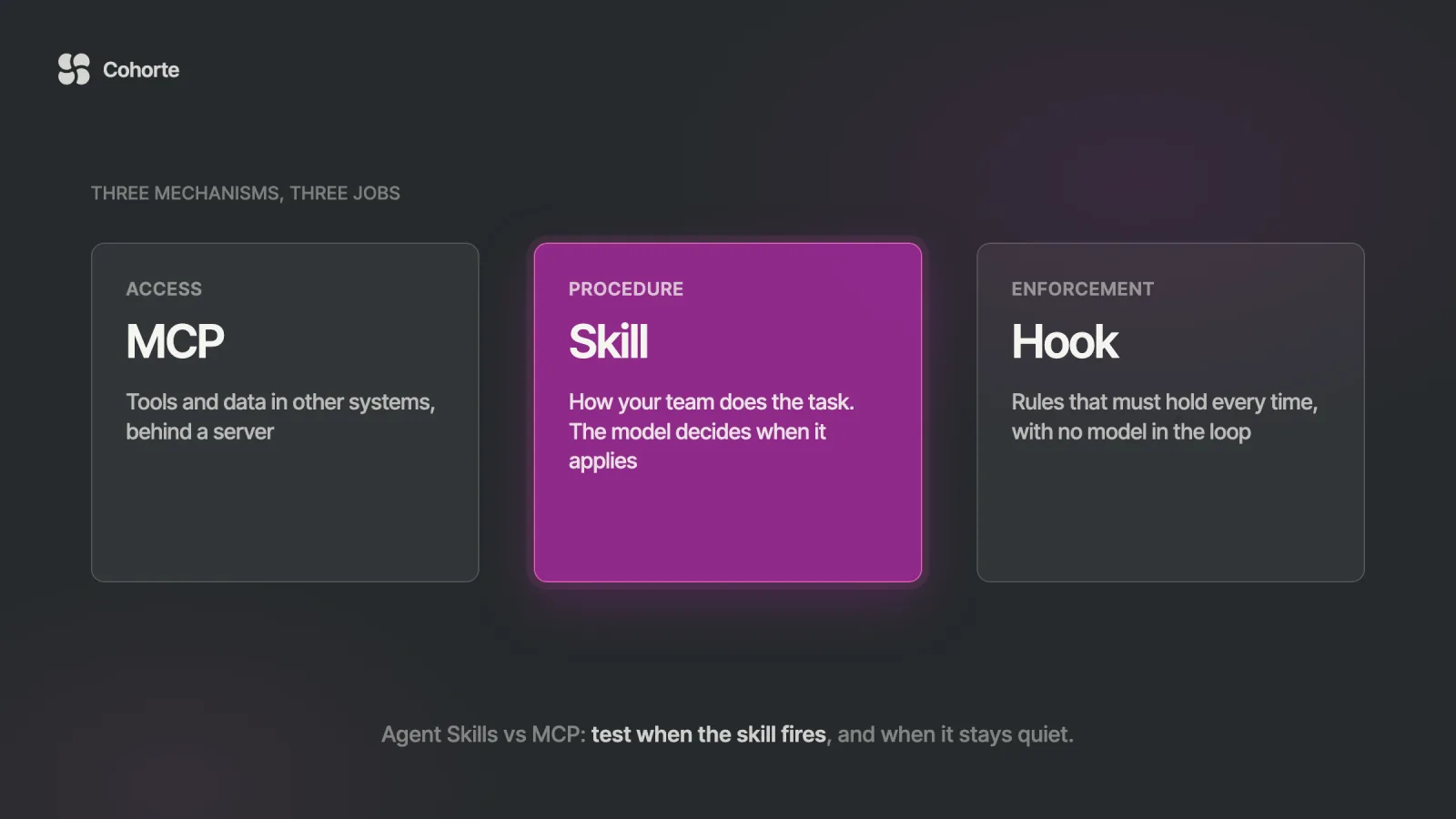
Connectors give Claude access to your apps. If you also want it to follow your team's way of doing a task, that is the job of a skill, and our guide to Agent Skills vs MCP explains how the two fit together.
Permissions and security: what a connector can do with your account
Every connector hands Claude a set of keys. That is the point, and it is also the main risk.
What Claude can reach
Claude inherits your permissions in each connected service. If you cannot open a file in Google Drive, Claude cannot either. The reverse holds too: if your account can delete a whole Notion teamspace, a connector authorized with that account can try.
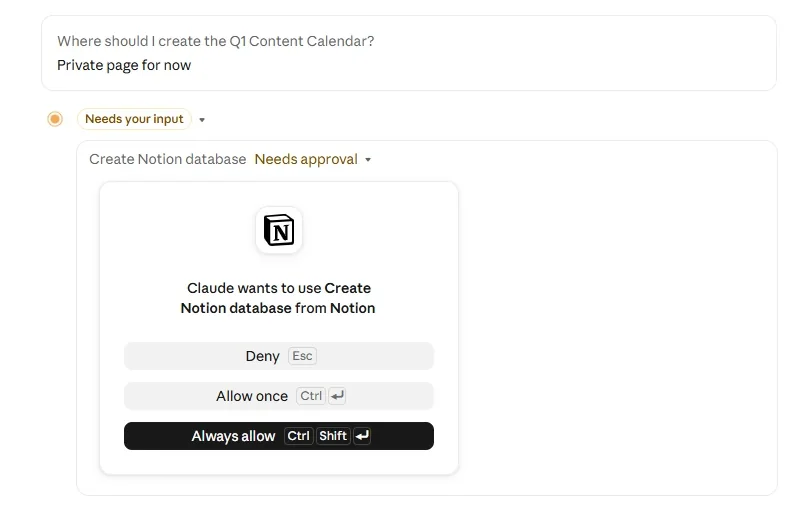
You control this at two levels. When Claude wants to use a tool, the approval card lets you deny it, allow it once, or always allow it from then on. On Team and Enterprise plans, owners can also set each tool to Always allow, Needs approval or Blocked for the whole organization, for example letting Claude search email while blocking it from sending. Those settings never grant more than your account in the source app allows.
Good servers add their own guardrails. Notion's delete tools run only when the call confirms the user approved the deletion, they are flagged as destructive so clients ask first, and they move pages to the trash, where you can restore them.
Instructions hiding in data
The risk I watch most is prompt injection. A model reads tool descriptions and tool results as text, and text can carry instructions. In April 2025, researchers at Invariant Labs demonstrated tool poisoning: instructions hidden in a tool's description, invisible to the user and read by the model. Their proof of concept hid a data-stealing instruction inside an innocent arithmetic tool.
A malicious server is not even required. In May 2025 the same team showed an attacker planting instructions in a public GitHub issue. The official GitHub server passed the issue to the model as ordinary content, and the agent leaked data from a private repository. So treat any connector that reads content written by outsiders, such as email, support tickets, chat channels or web pages, as a way in. Our MCP security checklist turns these attacks into controls for teams that run their own servers.
The rules I follow
- Official servers first. A connector from the directory or from the vendor is a far safer bet than an anonymous repository. Custom connectors can point at services Anthropic has not reviewed.
- Writes get approved one at a time. I click Always allow only for read-only tools I use constantly, on content my own team wrote, and I read each approval card before clicking it.
- Outside content stays away from powerful tools. I avoid asking Claude to process an inbox full of strangers' email in the same conversation where it can delete files or send messages.
- Local servers get vetted like software. A local MCP server runs on your machine with your user's access, so check it as you would any program you install.
- Connections get pruned. I disconnect services I no longer use and review permissions when a connector updates.
There are softer costs too. Each enabled connector adds tool descriptions to Claude's context, which takes space and can make tool choice less precise. With ten or more connectors active, Anthropic suggests switching Tool access (in the + menu, under Connectors) to On demand, so tools load only when Claude needs them. Connected services also process your data on their own infrastructure under their own terms, which matters for any team with data residency obligations.
Six common mistakes with Claude connectors
When someone tells me MCP is not working, the cause is usually one of these.
- Leaving the sign-in halfway. Connect opens an OAuth window. Close it before approving and the connector shows in your list without being able to reach the service. Disconnect and connect again from Customize.
- Forgetting the toggle. A connected service still has to be switched on for the conversation under the + menu. Check there first.
- Prompts that name neither the app nor the target. "What's on this week?" leaves Claude choosing between your calendar, your Notion tasks and your inbox. "Check my Notion content calendar for posts due this week" does not.
- Connecting everything on day one. Two connectors you understand beat ten you do not. Start with the apps where you spend the most time, learn how their tools behave, then expand.
- Clicking through the permissions screen. Some connectors only read, and others can create, edit and delete. Read what you are granting.
- Editing the Desktop config without a full restart. Changes to
claude_desktop_config.jsonapply only after a full quit and relaunch, and one missing comma in the JSON stops every server in the file from loading.
What I'd do
Pick the one app you copy and paste into Claude most often and connect it from the directory. Approve its write actions one at a time instead of clicking Always allow, read the consent screen before you click Continue, and spend a week giving it specific prompts that name the app, the record and the change you want. Once you trust how that connector behaves, add a second one where information has to travel between the two.
A connector is only as useful as the process it plugs into. Our Process First course has you write that process down before you automate any of it. We keep the method itself in an AI Operating System you own, and the AI OS Course shows you how to build one around Claude from your own context and checks. Cohorte founder Charafeddine Mouzouni's letter on why a company in 2030 might run on text files explains where this is heading.
FAQ
Is Claude MCP free to use?
Yes, for the basics. Connectors from the directory work on the free plan, desktop extensions work for anyone using Claude Desktop, and free accounts can add one custom connector. The connected app may have its own plan requirements, as Notion does for some advanced features.
What is the difference between a connector and an MCP server?
An MCP server is the program that exposes an app's capabilities through the protocol. A connector is Claude's name for a configured connection to one of those servers, with sign-in and permissions attached. In everyday use the two words mean nearly the same thing.
Do I need to know how to code to use MCP?
No. The connectors directory and desktop extensions need no code at all. Coding only helps for manual configuration, community servers, or building a server of your own.
Does MCP work with ChatGPT and other AI tools?
Yes. MCP is an open standard governed by the Agentic AI Foundation under the Linux Foundation, and ChatGPT, Cursor, Gemini, Microsoft Copilot and Visual Studio Code support it. A server built for one of them can work across the others.
Can Claude take actions without asking me?
Only if a tool is set to Always allow, by you or, on Team and Enterprise plans, by an owner. Otherwise Claude asks first, and the approval card lets you deny, allow once or always allow. Approving write and delete actions one at a time means you see each request before it runs. Owners can also block tools for the whole organization.
Can I connect Claude to an internal company system?
Yes, through a custom connector that points at your own remote MCP server, or through a local server in Claude Desktop or Claude Code. Custom connectors are reached from Anthropic's cloud, so a remote server must be reachable over the public internet, with Anthropic's IP addresses on the allowlist if it sits behind a firewall.
The copying and pasting I started with ended when Claude could see the calendar, the board and the plan, and asked me before it changed any of them.
Connect one app, keep the approvals on, and add the next one when you trust the first.
Oghenetega AdugboNovember 6, 2026