Most people know AI is powerful.
But very few know how to go from:
“Here’s a sentence we want to say…”
to:
“…and here’s an animated character saying it on video.”
So in this post, we’re going to fix that.
We’ll walk through, step by step, how to use Grok AI’s Imagine tool (on a free account) to:
- Turn any speech into an AI video
- Create talking monsters and talking humans
- Generate vertical and horizontal animations
- Build a 3-scene mini-story
- Create a UGC-style ad for a product
- Keep everything consistent and usable for real content
We’ll also drop prompt examples so you can copy, tweak, and build your own characters and videos.
Let’s dive in.
Why Turning Speech into Video Is a Big Deal
If you make content, run a business, or handle marketing, you’re running into the same wall over and over:
- Scripts are easy.
- Recording decent video is hard.
- Editing is painful.
- Animations are “maybe someday.”
AI video flips that.
With tools like Grok Imagine, you can:
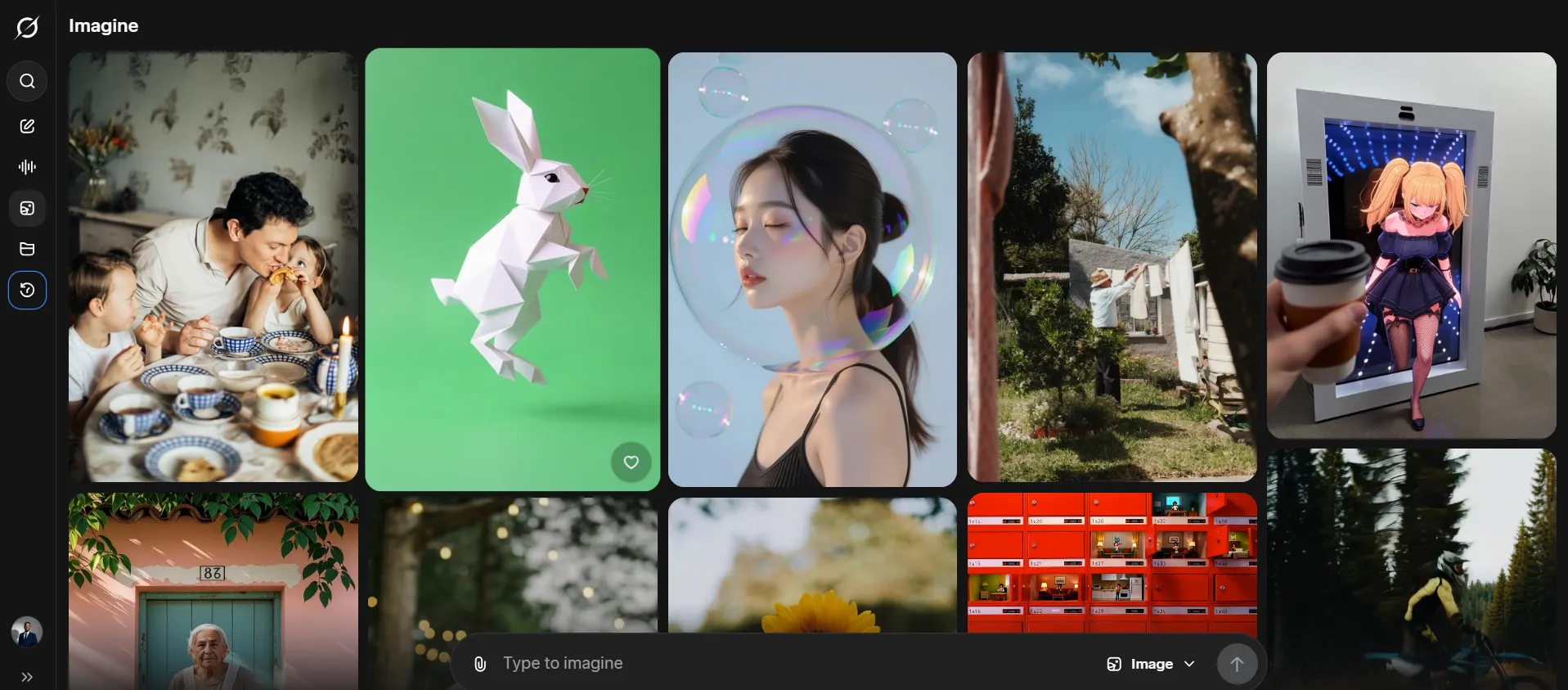
- Use text as your starting point
- Turn that text into images, characters, and full videos
- Skip the whole “camera, lights, mic, studio” mess when you want to
And we’re not talking about abstract art or weird glitchy faces.
We’re talking about:
- Pixar-style 3D characters
- Talking creatures with emotion
- Horizontal and vertical formats
- Simple stories you can stitch together
All from a free Grok account.
Step 1: Getting Free Access to Grok Imagine
First thing: yes, all of this is done with free access.
Here’s the basic workflow we use:
- Open the Grok AI website
- Log in
- We log in with Gmail—no credit card, no paid plan.
- Click on “Imagine” in the top-left menu
- This opens the visual workspace where you create:
- Images
- Animations
- Short videos
- This opens the visual workspace where you create:
- Browse the examples
- You’ll see an endless gallery of:
- AI images
- Video loops
- Animations
- You can click any of them to see the exact prompt used.
- You’ll see an endless gallery of:
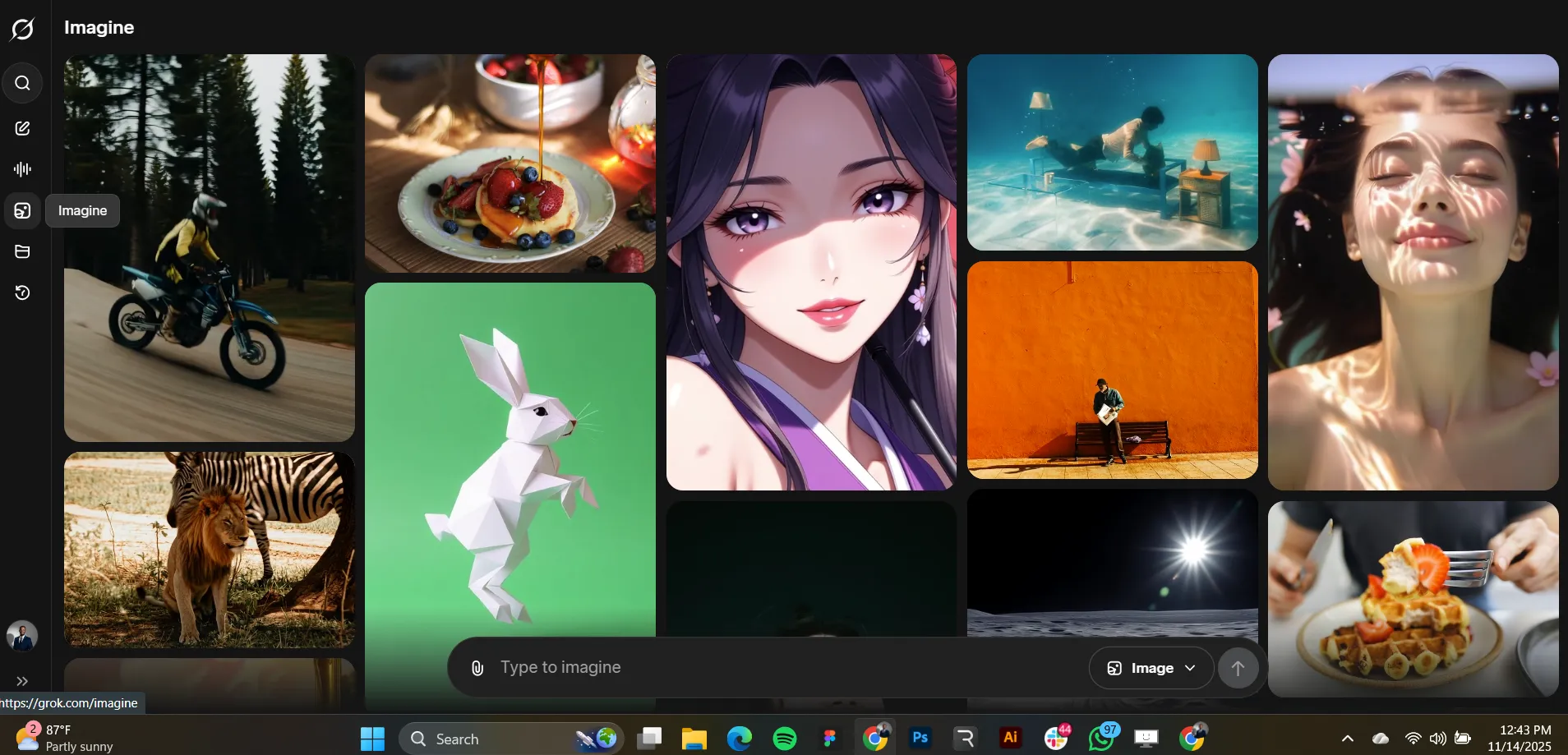
We recommend spending a few minutes doing this.
It’s one of the fastest ways to train your brain on what good prompts look like.
Once you’re comfortable, you’re ready for real demos.
Step 2: From Brainrot Prompt to Cinematic Clip
We started with something deliberately chaotic: brainrot.
Oxford literally picked “brainrot” as word of the year. So we turned that chaos into content.
2.1. The brainrot prompt
In Imagine, we wrote something along the lines of:
Example prompt:
“Historical figures in a chaotic brainrot meme scene, exaggerated facial expressions, bright saturated colors, over-the-top composition, cluttered background, surreal humor.”
Hit Generate.
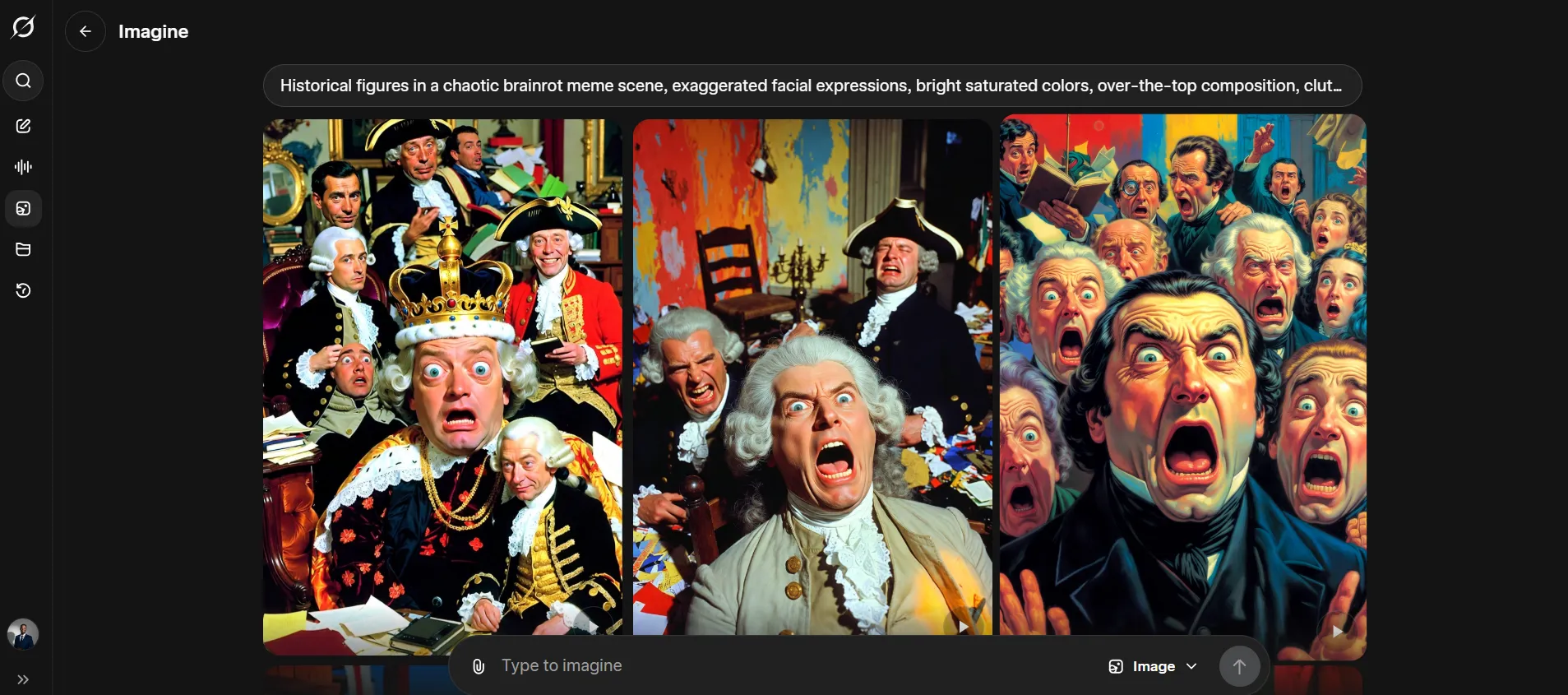
We got exactly what we asked for:
- Loud, chaotic visuals
- Wild expressions
- Meme energy everywhere
Fun to look at, but not something we’d put in a cinematic edit yet.
2.2. The two-word upgrade
Instead of starting a new chat, we stayed in the same thread and just replied:
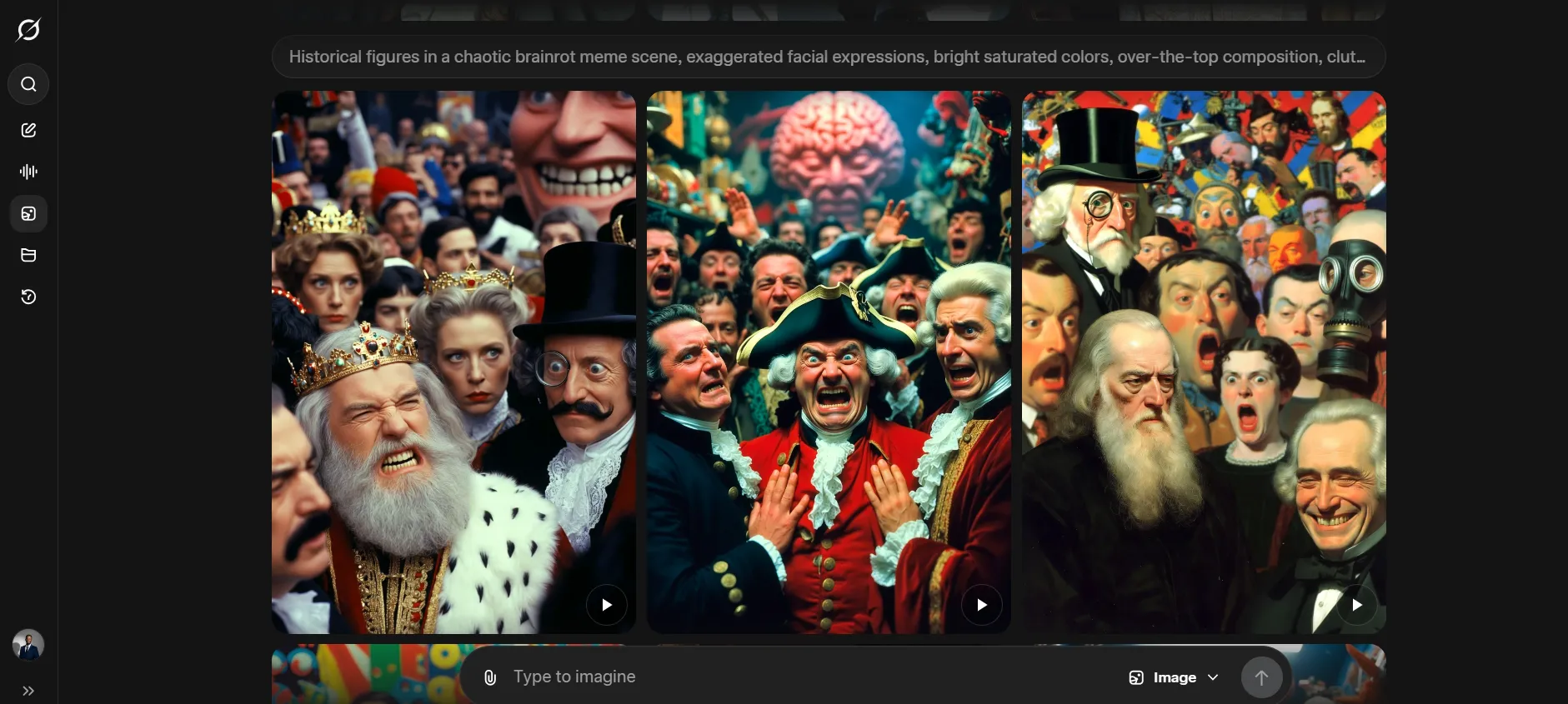
"realistic, cinematic"
Hit enter again.
Now the results looked like:
- Movie-style lighting
- Sharper details
- More natural faces
- Scenes that felt like stills from a surreal film
2.3. Turning the image into a video
Next, we picked our favorite cinematic image and clicked:
Make video
We didn’t even write a new video prompt. We let the AI:
- Animate expressions
- Add subtle movement
- Create a looping video
What we got:
- Over-the-top facial expressions
- Surreal environment
- A clip that looks absurd and strangely beautiful at the same time
Key takeaway:
You don’t need perfect prompts to get started. Use a messy prompt to get something cool, then refine the style inside the same thread with small text edits like “realistic,” “cinematic,” or “Pixar 3D style.”
Step 3: Text-to-Video Speaking Creature (No Image Required)
Next, we wanted to know:
“Can Grok go straight from text to a speaking character, without making an image first?”
The answer is yes—and that’s where it gets fun.
3.1. A single prompt for character + voice
We switched Imagine into video mode and used one prompt that covered:
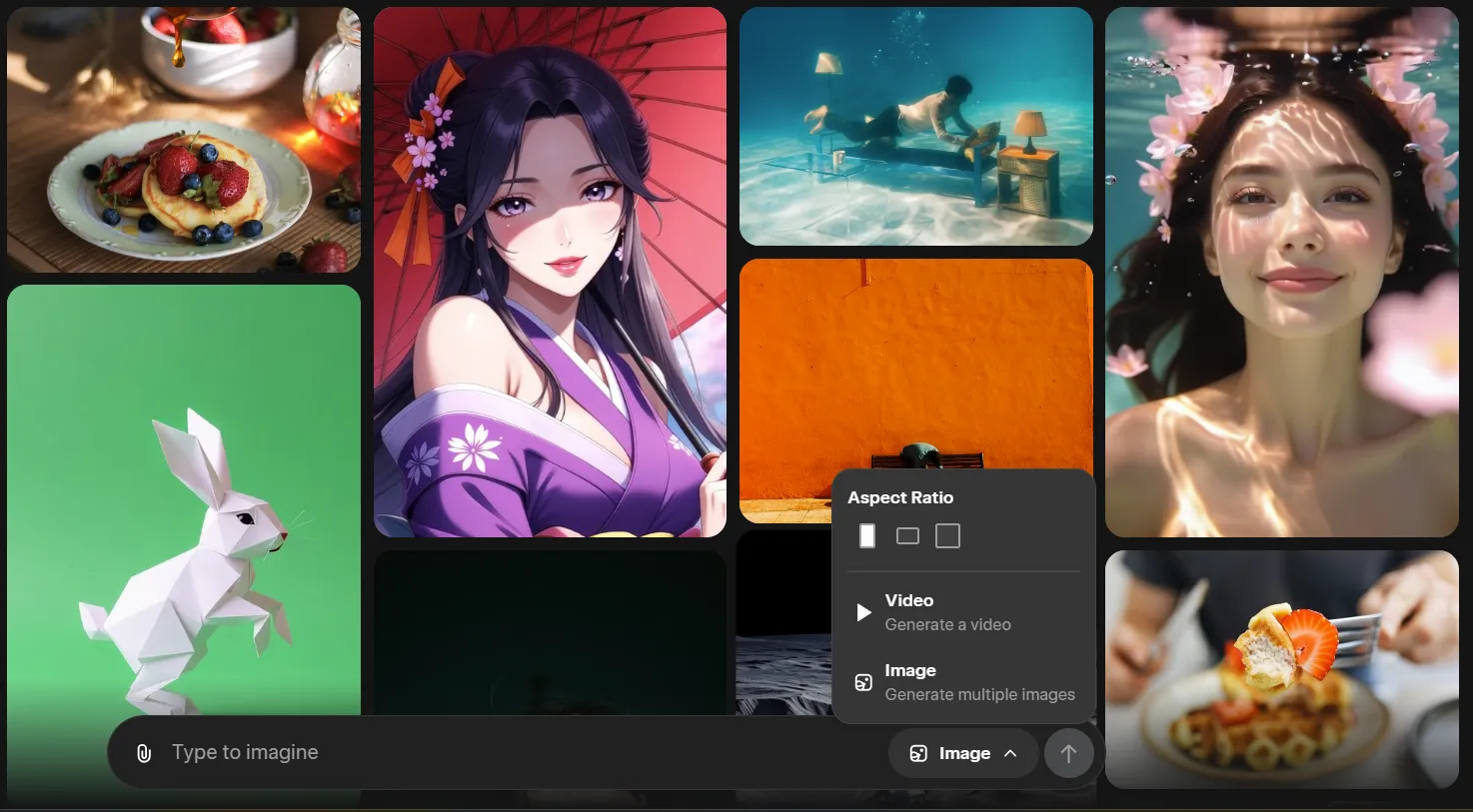
- Character description
- Art style
- Setting
- The exact line we wanted it to say
Example prompt:
“Cute forest monster in a magical forest, Pixar 3D style, ultra-detailed, big glowing horns, soft volumetric lighting, warm color palette. Make the character talk with this line: ‘Can you believe I was made with free AI? Look, my horns even glow. That’s kind of awesome.’”
Hit Generate.
3.2. The result
The video came back with:
- A fully animated forest creature
- Pixar-like 3D quality
- Clear speech delivery
- Lip-sync that matched the line surprisingly well
- A voice that felt like it belonged to that character
The only tiny “flaw” we noticed?
- The horns didn’t softly glow—they looked more like they were burning.
Slightly dramatic, still very cool.
Key takeaway:
You can go directly from text → talking video. No separate voice setup. No separate animation steps. Just one prompt.
Step 4: Speaking Human Characters for Content & Marketing
Creatures are nice.
But we wanted to know if we could actually replace some talking-head content with animated humans.
Think:
- Product updates
- Course intros
- Explainer videos
4.1. Prompting a speaking human
We wrote a prompt that described:
- The character
- The style
- The framing
- The exact line we wanted spoken
Example prompt:
“Young woman in Pixar-style 3D, medium close-up shot, soft depth of field, studio lighting, neutral background. Make her say: ‘You don’t want to miss this video. It’ll teach you how to turn any speech into a video like this.’”
Hit Generate.
4.2. The output
Result:
- A 3D Pixar-like human
- Depth of field around the face
- Clean lighting and realistic shading
- Very natural-looking animation
And the speech?
- Clear
- Correctly timed
- Lip-sync aligned with the words
If you’re in marketing, this is where the lightbulb goes off:
You can create branded, animated spokespeople with no camera, no actor, no gear—just a script.
Step 5: Yes, It Does Horizontal (Widescreen) Too
A totally fair question at this point:
“Is this just for vertical TikToks, or can we do proper horizontal video?”
We tested that next.
5.1. Generate a horizontal still image
First, we switched to image mode and used a prompt like:
Example prompt:
“16:9 horizontal frame, Pixar-style woman speaking to camera, medium close-up, cinematic lighting, shallow depth of field, neutral background.”
We picked the version we liked most and saved it.
5.2. Use the image as a source for animation
Then, we:
- Switched back to video mode
- Uploaded that horizontal image
- Added just the speech line:
“You don’t want to miss this video. It’ll teach you how to turn any speech into a video like this.”
No need to re-describe the character; the image handled that.
Hit Generate.
The result:
- Crisp, widescreen animation
- Same quality lighting and depth
- Same character look and feel
- Now in a proper horizontal format for YouTube or web
There was a tiny little click sound at the start of the audio, but that’s easy to trim in a basic editor.
Key takeaway:
You’re not locked into vertical. Grok handles widescreen, too—which brings this much closer to professional storytelling and YouTube content.
Step 6: Building a Multi-Scene Story (Teddy Bear Chef)
So far, we’ve been talking short clips.
What about a simple story with multiple scenes and a consistent character?
We tested that with a teddy bear cooking in a kitchen.
6.1. Build your scenes as images in one thread (Try this on your own)
We switched Imagine to image mode and imagined a three-scene story:
- Bear prepping ingredients
- Bear cooking
- Bear presenting the finished dish
We stayed in the same chat and wrote:
Scene 1 prompt:
“Cute teddy bear in a cozy kitchen, standing on a stool, preparing ingredients on the counter, warm lighting, 3D children’s storybook style.”
Picked our favorite image and saved it.
Scene 2 prompt (same thread):
“Same teddy bear and same kitchen, now stirring a pot on the stove, steam rising, warm lighting, same style and camera angle.”
Saved our favorite again.
Scene 3 prompt (same thread):
“Same teddy bear, same kitchen, proudly presenting a finished dish on a plate, kitchen slightly messy, warm lighting, same style.”
Saved that too.
Because we stayed in the same conversation, the teddy bear stayed consistent.
6.2. Animate each scene separately
Now we flipped back to video mode.
For each scene:
- Upload the saved image
- Generate a short animation (no heavy prompt needed, or a simple “add gentle character motion” line)
- Download the clip
We ended up with three short videos:
- Clip 1: Bear prepping, kitchen chaos starting
- Clip 2: Bear cooking, steam and motion
- Clip 3: Bear presenting the final dish
The lighting and style stayed matched across all scenes.
The only mismatch?
- Each clip came with different background music.
We fixed that by muting the original tracks and adding our own song when editing.
Key takeaway:
For consistent characters across scenes, keep all your prompts in the same chat, generate images first, then animate them one by one.
Step 7: Rapid-Fire AI Ad Creation (Fitness App Example)
Finally, we wanted to see how this works for something very practical:
Creating an ad concept for a fitness app.
7.1. Let AI brainstorm visuals
We prompted Imagine with:
Base prompt:
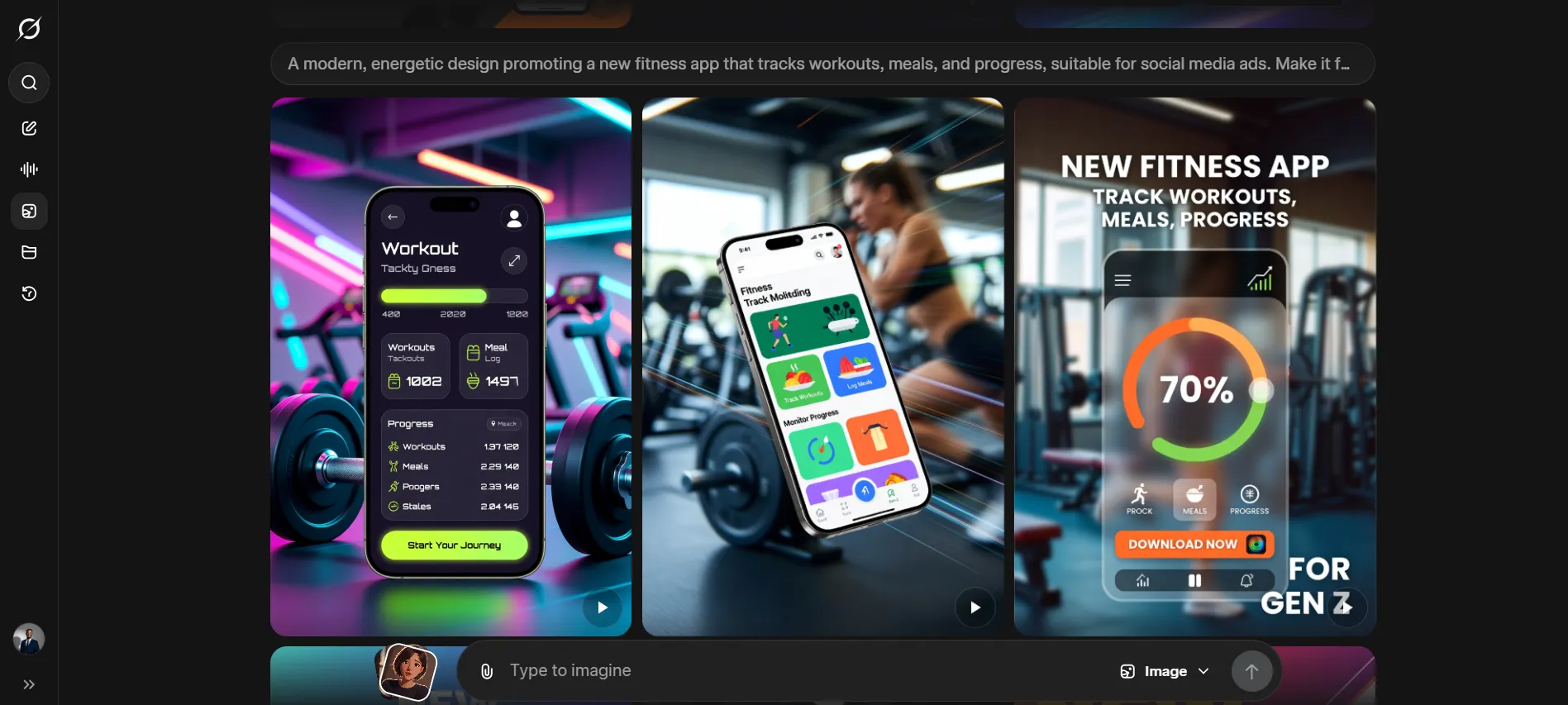
“Promote a new fitness app that tracks workouts, meals, and progress. Modern, energetic design, suitable for social media ads.”
In seconds, we had multiple visual directions:
- People training
- App UI overlays
- Dynamic backgrounds
- Different stylizations
If we needed horizontal ads for YouTube or web, we just toggled the aspect ratio.
7.2. Refine for a specific audience: Gen Z
To see how flexible it is, we added:
Make it for Gen Z.
The visuals shifted:
- Brighter palettes
- Bold type
- Edgier compositions
- Very “TikTok era” energy
Same general concept, totally different vibe.
7.3. Turn a concept into a speaking ad
We then picked one image we liked and told Imagine to animate it with a short line:
Ad line prompt:
“Make the main character speak with this line: ‘Forget the excuses. FitVerse tracks your workouts, meals, and progress in one app.’”
Hit Generate.
The result:
- A UGC-style ad clip
- Realistic lighting
- Clear voice delivery
- Perfect for testing as a short-form ad on Reels, TikTok, or Shorts
Key takeaway:
You can go from ‘we need a promo’ to a full image + video concept in minutes—no actors, no shoots, no blank-screen agony.
Prompt Playbooks You Can Steal
To make this actionable, here are a few reusable structures you can adapt.
1. Turn a sentence into a talking character
Template:
“[Character description: who they are, what they look like] in [style: Pixar 3D, anime, realistic], [camera framing: close-up / medium shot], [lighting & background]. Make the character say: ‘[your exact line here]’.”
Use this for:
- Hooks
- Announcements
- Short explainers
2. Upgrade chaotic ideas into cinematic shots
Step 1 prompt:
“[Wild / meme / brainrot idea] in over-the-top style, bright colors, exaggerated expressions, surreal composition.”
Then reply in the same thread:realistic, cinematic
Use this to:
- Explore wild concepts
- Then pull out the one or two that look like actual movie stills
3. Build a 3-scene mini-story
Stay in the same chat and use:
Scene 1:
“[Character] in [setting], doing [action 1], [style], [lighting].”
Scene 2:
“Same [character] and [setting], now doing [action 2], same style and lighting.”
Scene 3:
“Same [character], [setting], now [resolution moment], same style and lighting.”
Then:
- Turn each into a short video
- Stitch in any editor
4. Prototype a UGC-style product ad
Prompt:
“Create an ad concept for [product/app], [who it’s for], [where it’s shown: TikTok / YouTube / IG]. Modern, scroll-stopping, [style: Gen Z, minimalist, premium, etc.].”
Then:
“Make the main character speak with this line: ‘[short, punchy hook]’.”
Use this to:
- Rapidly test creative angles
- Get video variations without full shoots
Final Thoughts: We’re Already in the AI Movie Era
In one session with Grok Imagine, we went from:
- Brainrot memes → cinematic clips
- A text line → a glowing-horn forest monster speaking on camera
- A single prompt → a Pixar-style human delivering a hook
- Vertical-only worries → fully working horizontal animations
- Still images → a 3-scene teddy bear cooking story
- Blank ad brief → UGC-style fitness app video
All with free access and plain language prompts.
The real bottleneck now isn’t the tool.
It’s:
- How clearly we can describe what we want
- How willing we are to experiment, refine, and stack these capabilities
So here’s our challenge to you:
Take one sentence you’ve written recently—an intro, a product promise, a line from a script—and feed it into Grok Imagine as a speaking character.
From there, build:
- A creature version
- A human version
- A horizontal version for YouTube
You’ll feel the shift immediately.
You’re not just “making AI stuff.”
You’re building tiny, AI-powered pieces of video that can live in your content, your marketing, your stories.
And this is just the beginning.
Tega AdeyemiNovember 14, 2025.