
How we use Invideo AI to go from one prompt to full YouTube videos, cinematic ads, and multilingual edits—without wrestling a timeline.
The email subject line said it all:
“Client wants 3 YouTube videos, 4 IG ads, 2 TikToks… by Monday.
Please tell me there’s one tool that can actually do this.”
This came from a freelance editor who was drowning in:
- One tool for script
- Another for voice
- A third for b-roll
- A fourth for editing
- A fifth for export
- Plus the ancient art of “can you just make one more tiny change?”
We’ve been there. For years.
We’ve tested AI video generator after AI video generator.
Most of them are great at one thing:
- Cool short clips
- Or decent b-roll
- Or semi-usable voiceovers
Very few can handle the entire flow.
After years of this, we finally landed on a tool that feels dangerously close to “all-in-one”:
Invideo AI – a video platform that:
- Accesses major AI video models for you
- Gives you usable templates and workflows
- And generates full-length videos up to 10 minutes from a single prompt
If you’re a creator, that’s an entire YouTube video in minutes.
If you’re a business owner, that’s ads, explainers, and social content without hiring an agency or losing your weekend.
We also get it:
New tool = learning curve = “Is this just more work?”
So in this post, we’ll walk you through:
- What Invideo AI actually does
- How we use it for long-form, ads, and creative experiments
- Where it shines vs. where you still need human tweaks
- Who should actually pay for it
By the end, you’ll know whether this deserves to replace your current video workflow or just stay on your “maybe later” list.
Why Most AI Video Tools Feel Cool… But Don’t Replace Anything
Quick reality check.
Most AI video tools:
- Make cute 5-second clips
- Struggle beyond 30–60 seconds
- Require you to:
- Export
- Import into another editor
- Add voice, timing, transitions, revisions
So they become another step, not a replacement.
Invideo AI is built differently:
- You can go from one prompt → full 10-minute video
- You can do short, polished 30-second ads
- You can edit with natural language instead of a timeline
- You can switch models (Sora 2, Google Veo 3.1, etc.) without leaving the tool
Let’s start from the beginning so you can see how it’s set up.
First Login: Two Doors, One Studio
When you first log into Invideo AI, you land on a simple homepage with two big options:
- Create AI Videos
- Agents & Models
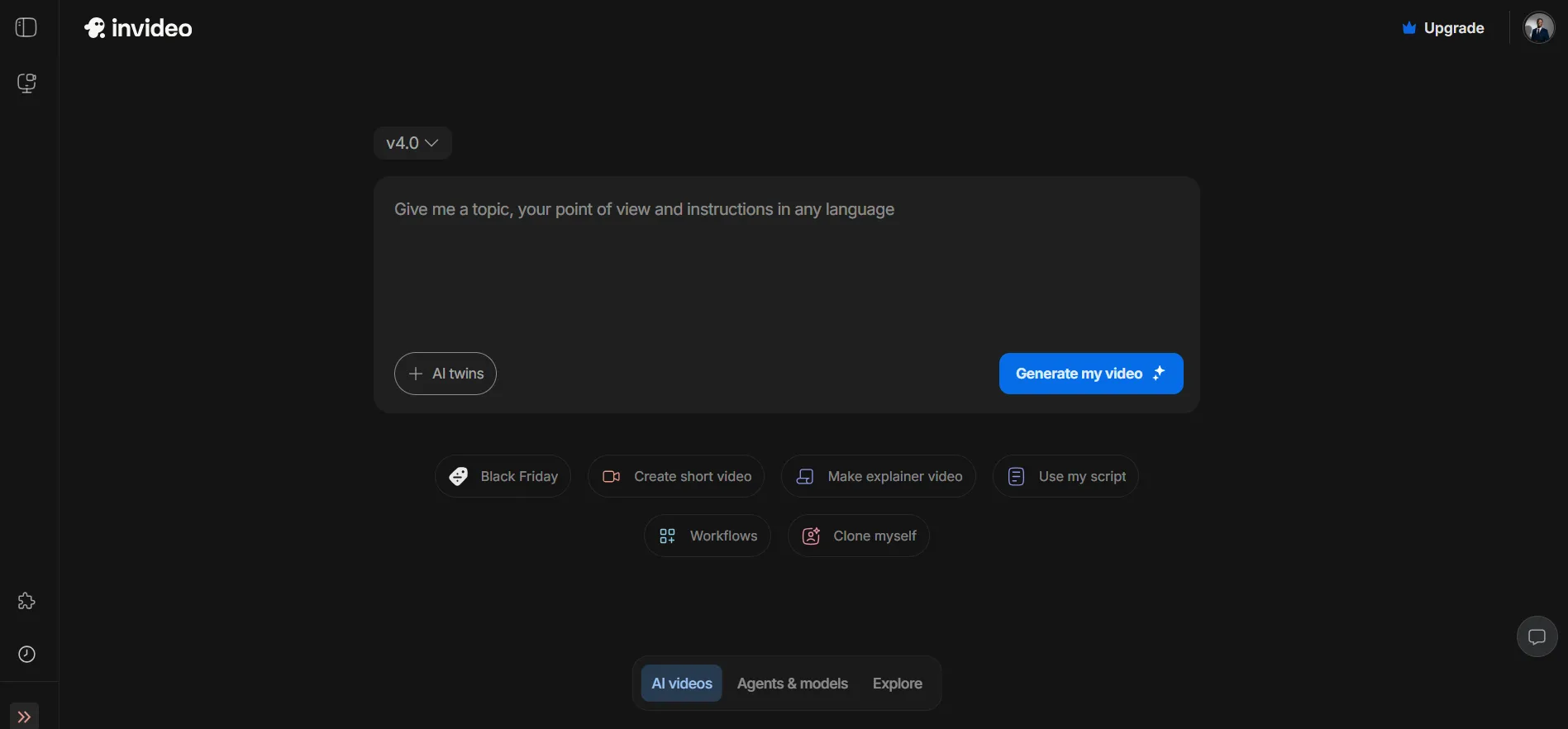
You can think of them like this:
- Create AI Videos → Your main “studio”
- Agents & Models → Your lab for specific models and advanced tinkering
We’ll start in Create AI Videos because that’s where 90% of the magic happens.
Inside “Create AI Videos”: Your Main Command Center
The “Create AI Videos” area gives you everything you need to go from idea to finished video.
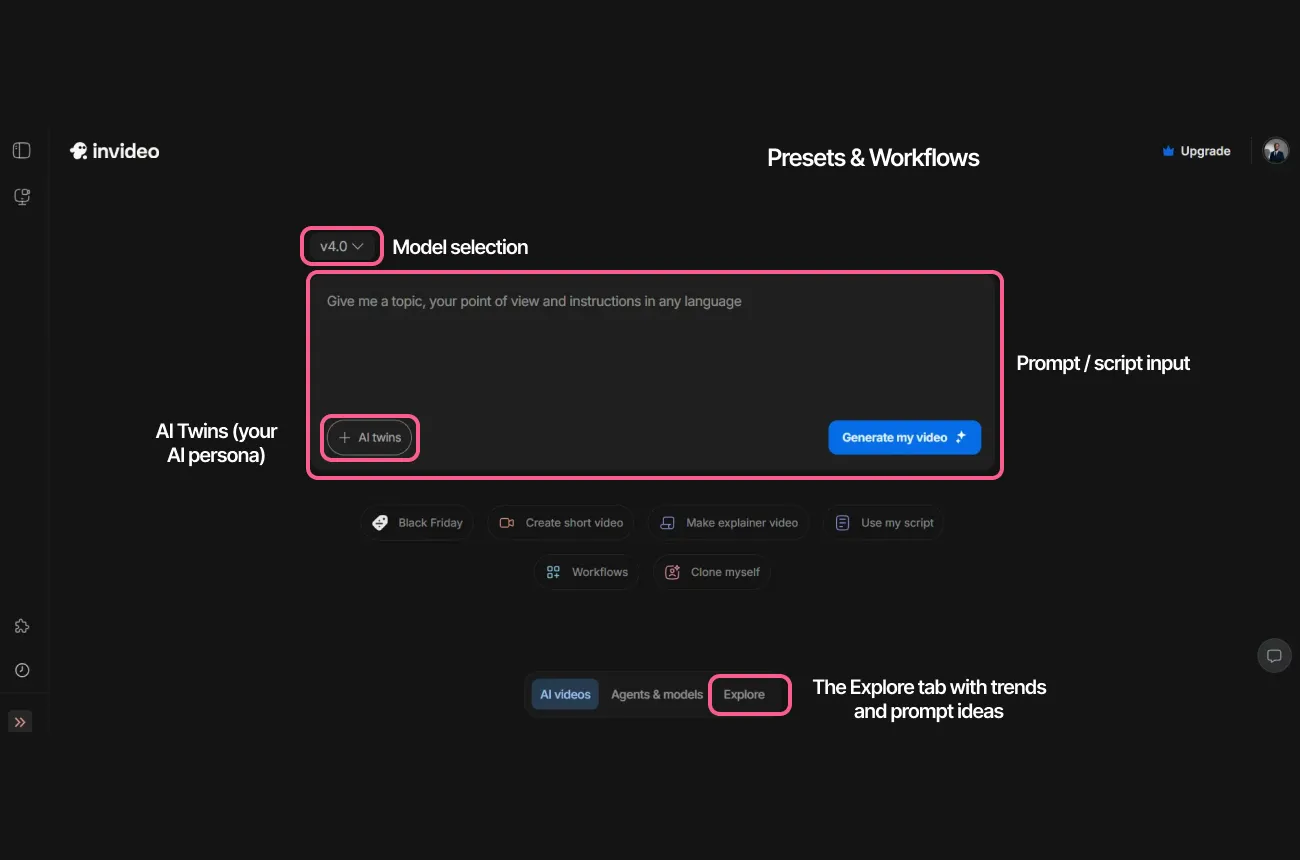
You’ll see:
- Model selection (top left)
- Prompt / script input
- AI Twins (your AI persona)
- Presets & Workflows
- The Explore tab with trends and prompt ideas
Let’s walk through each.
Step 1: Pick the Best Model (Set It and Forget It)
Top left: model selection.
Right now, the highest version is 4.0.
That’s the one we stick with because:
- It’s the most advanced
- It gives the best quality
- It handles longer, more complex videos better
No need to overcomplicate this.
Set model: 4.0 → move on.
Step 2: Drop Your Idea or Full Script
Under the model dropdown, there’s a big text box.
You can:
- Type your idea
- “A 10-minute YouTube explainer on how to learn to fly a plane.”
- Specify language
- “French voiceover, casual tone.”
- Paste an entire script if you already have one
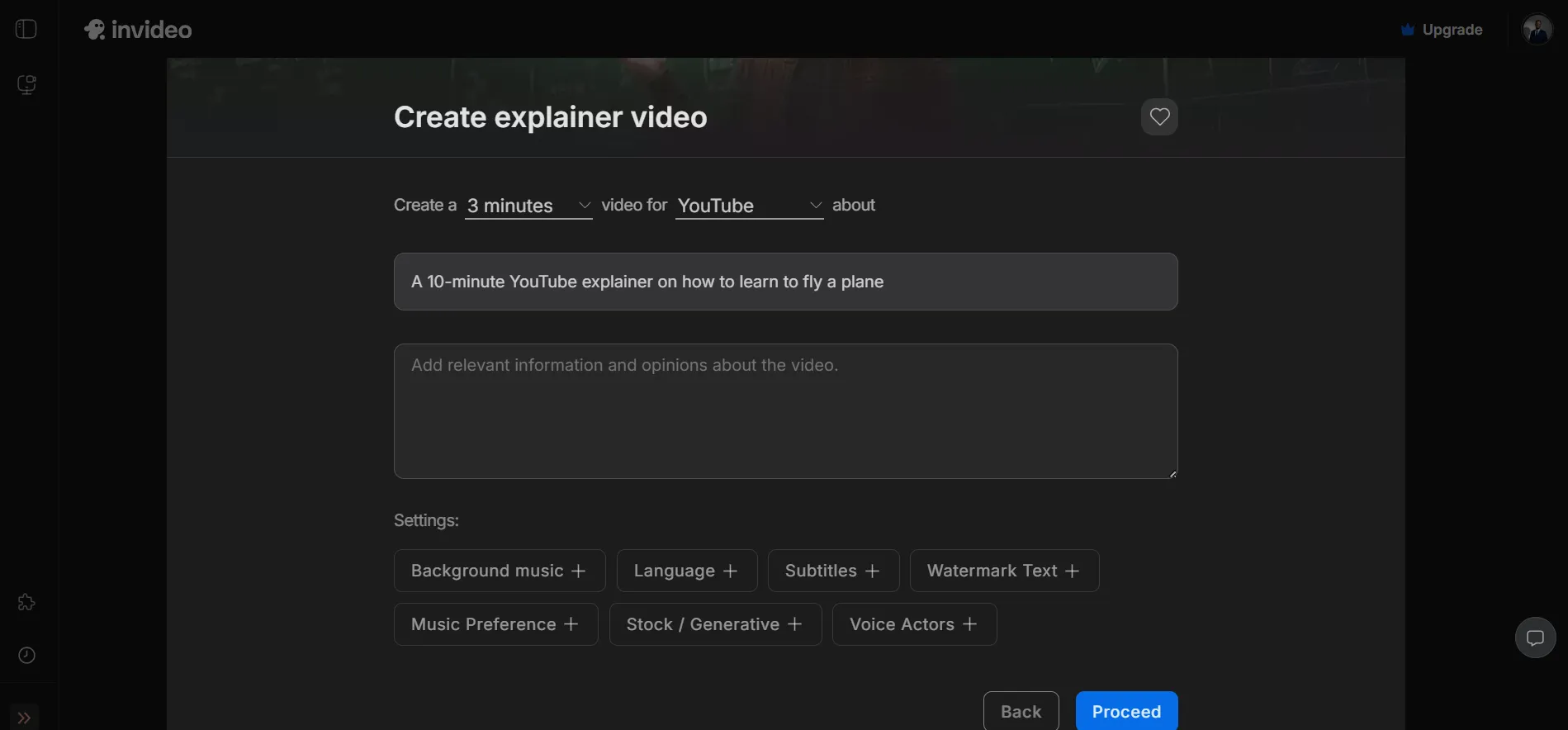
Invideo AI uses this to:
- Build your script (if needed)
- Generate visuals
- Choose pacing and structure
You don’t have to be a poet. Just be clear.
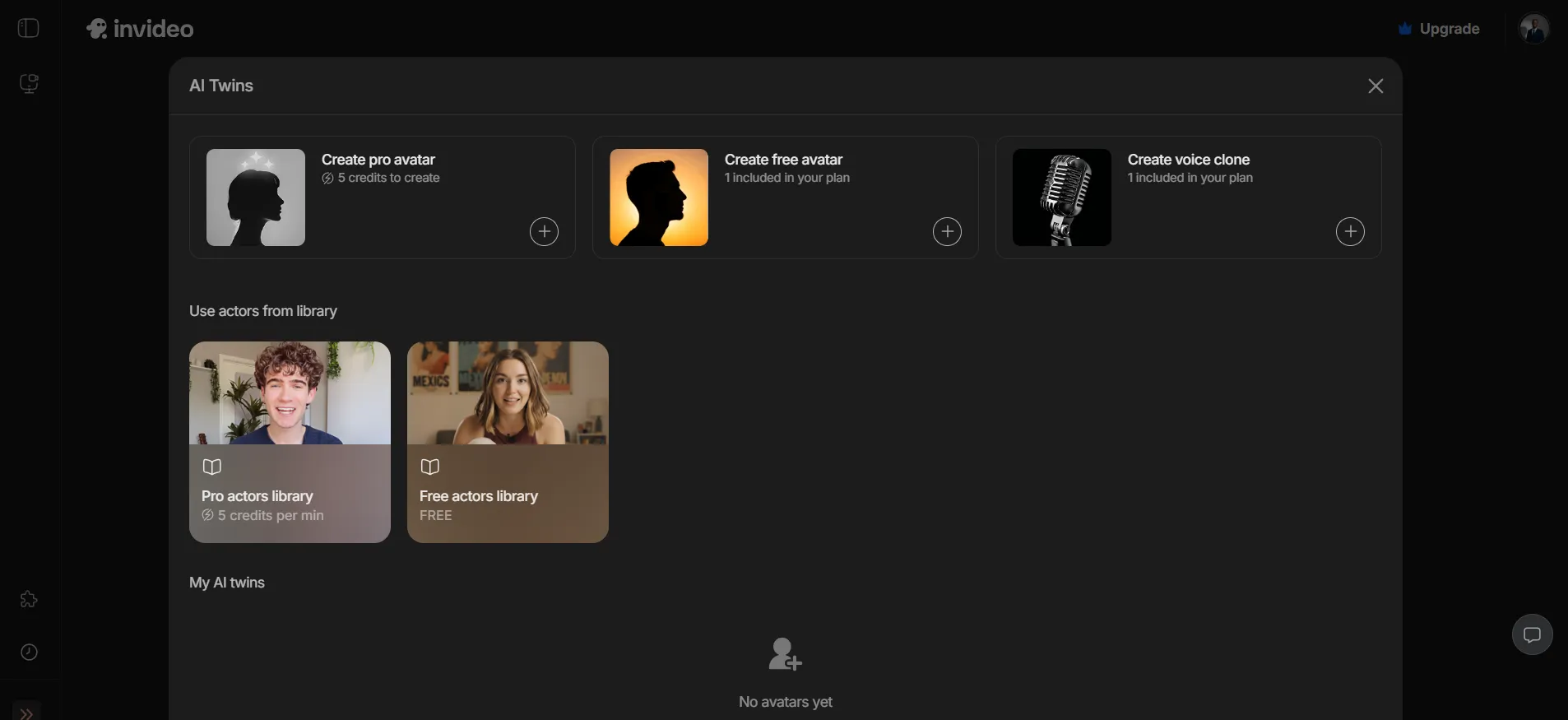
Step 3: Use AI Twins So You Don’t Have to Be On Camera
There’s a section called AI Twins where you can create your own AI persona:
- It looks like you
- It sounds like you
- It lets you “show up on video” without filming every time
We like it for:
- Quick explainer videos
- Internal training content
- Situations where we want a familiar face, but not a full shoot day
Step 4: Workflows — Where Things Get Unfairly Easy
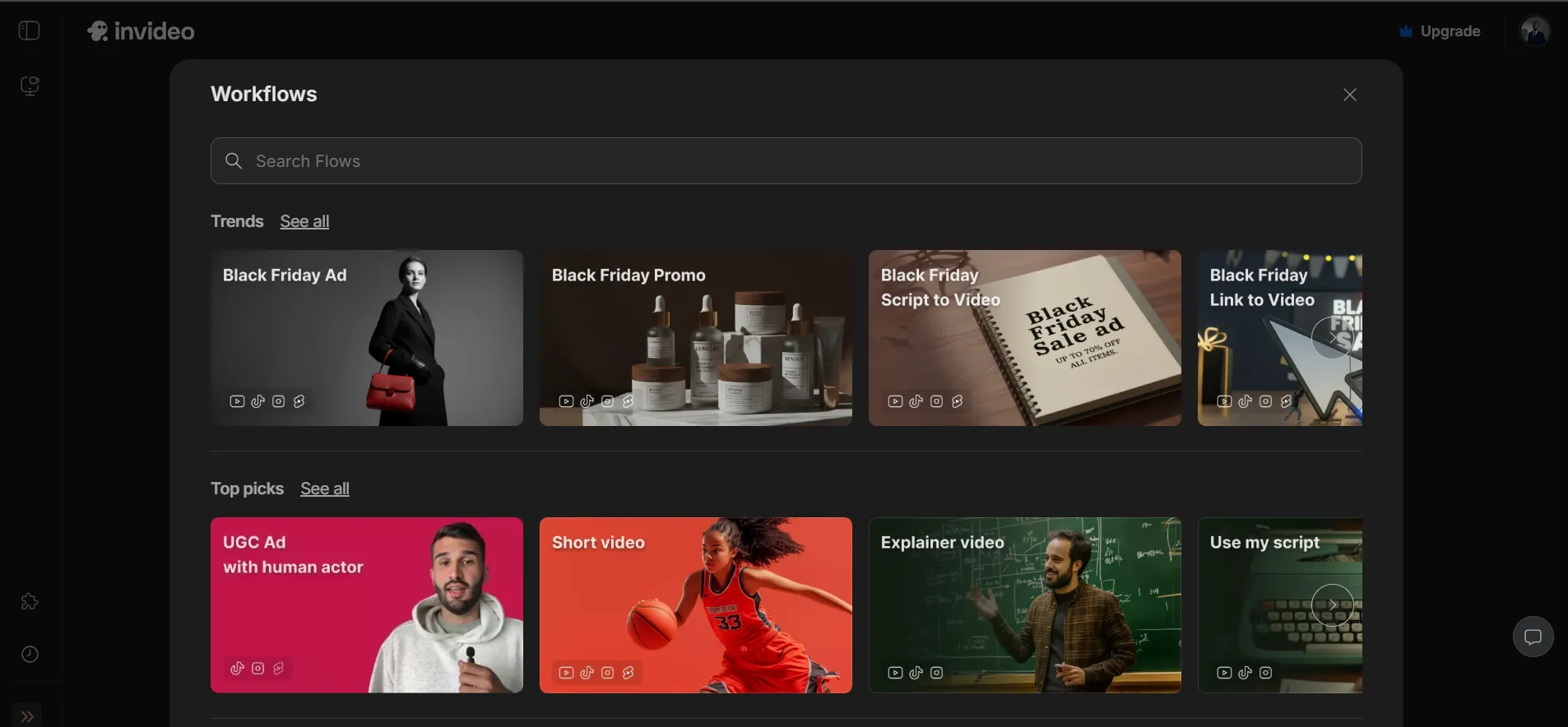
Below that, you’ll see presets—and the most powerful of them: Workflows.
Workflows are pre-built pipelines for:
- Faceless videos
- Top picks / trending formats
- Ads & marketing
- Animation videos
- Explainers (including 10-minute YouTube formats)
They come with:
- A ready-made structure
- Built-in pacing
- Sections designed for hooks, body, CTA, etc.
So instead of:
- Blank timeline
- Blank script
- Blank everything
You start from something that already works.
We’ll show you exactly how this looks with a long-form example in a second.
Step 5: Explore — Built-In Content Radar
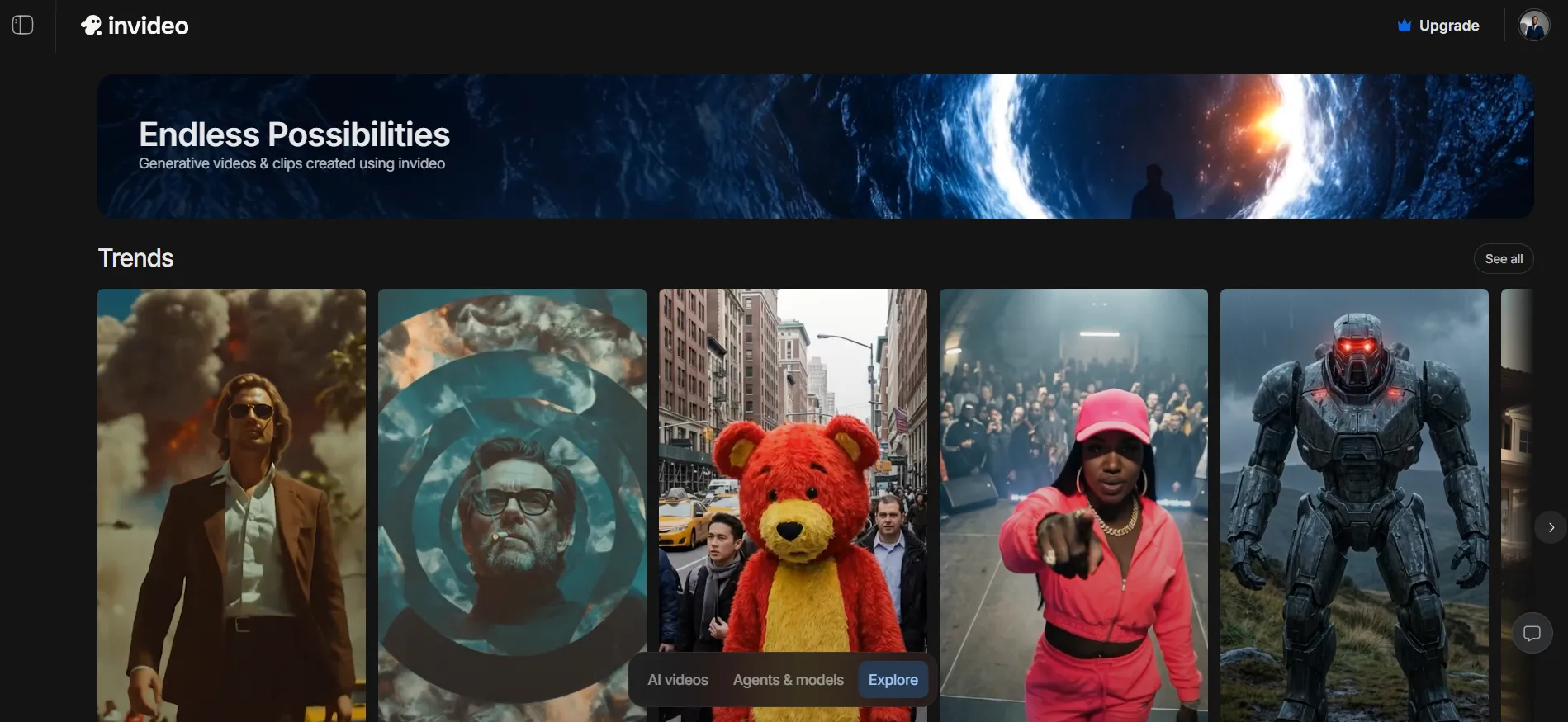
On the right side, there’s an Explore panel.
Here you’ll find:
- Trending prompts
- Popular video formats
- Real examples performing well right now
We regularly scroll this when we’re stuck, because it:
- Shows what’s actually working
- Makes ideation faster
- Gives you a head start on hooks and angles
Agents & Models: Direct Access to Sora, Veo & Friends
Now let’s peek at the Agents & Models section.
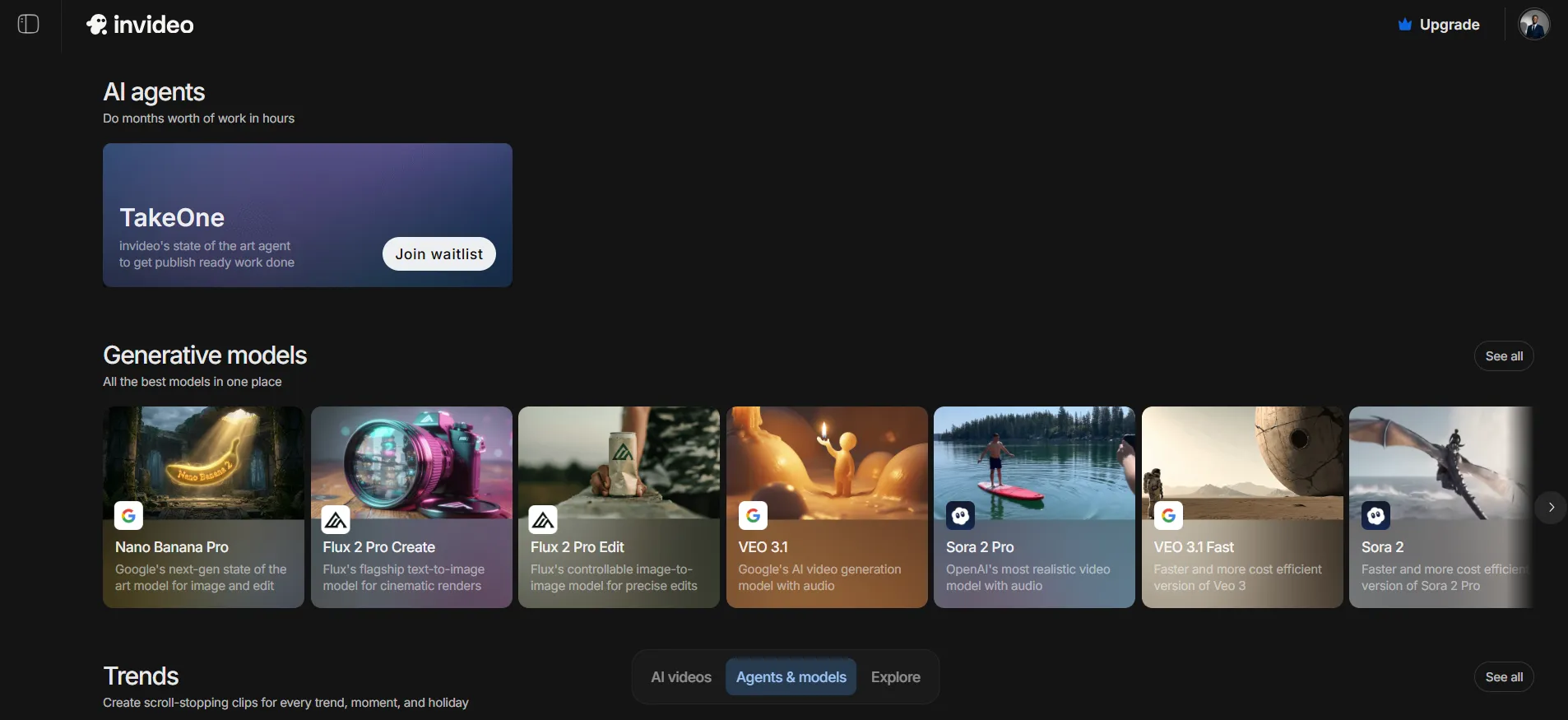
This is where you can:
- Pick specific models like Sora 2 Pro, V3, Google Veo 3.1, Seedream, Nano Banana, etc.
- Create projects that use just that model
- Generate images or videos in a chat-like interface
Fun Example: “Make Me a Zombie and Walk Me Into a Shop”
Here’s one we actually ran:
- Choose Sora 2 Pro
- Click the Trends button
- Select “Make me a zombie”
- Extend the prompt:
“Make me a zombie, walk me into a shop and scare away the customers.”
- Upload a photo
- Click Generate
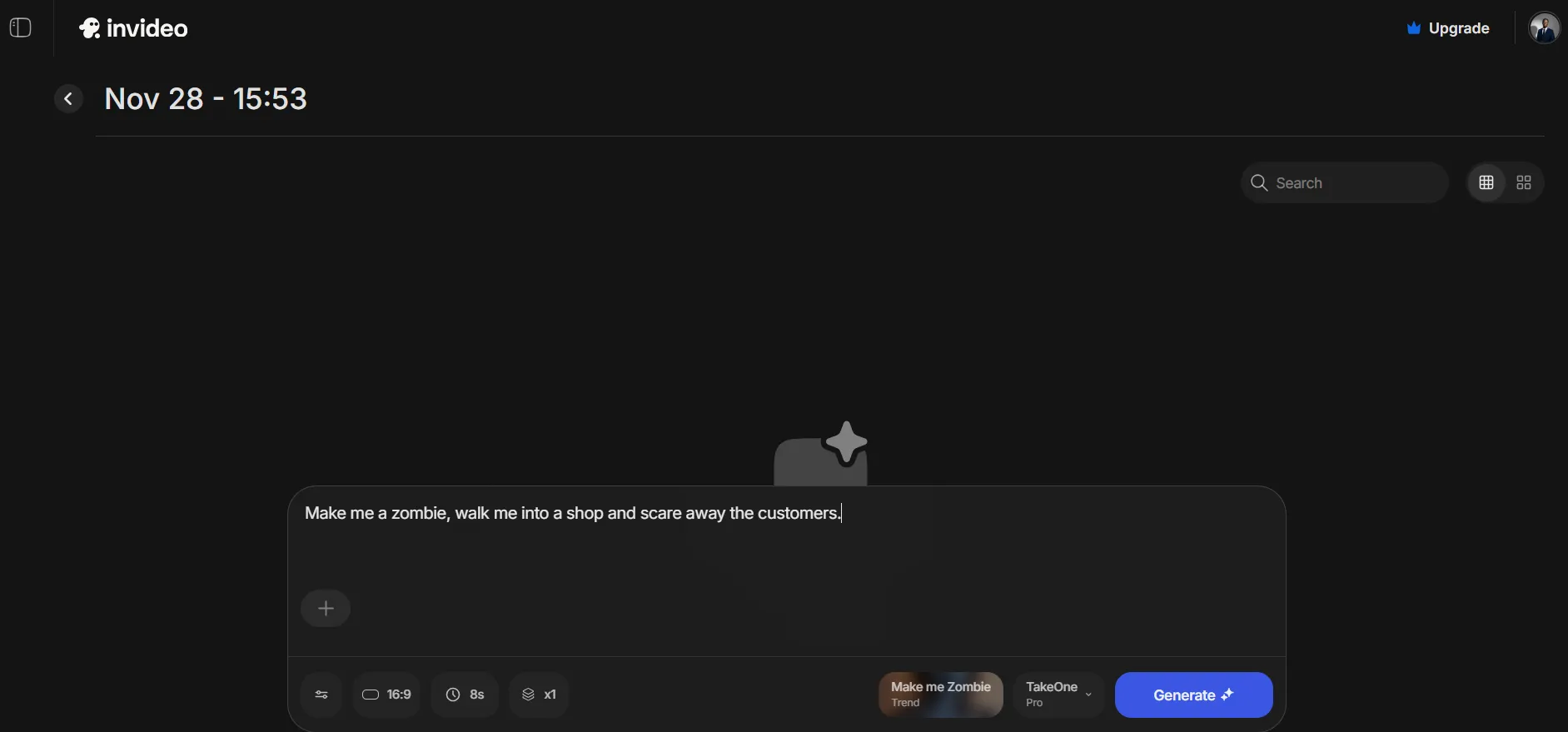
The result:
- A fully generated, coherent, fun clip
- Prompting simplified by the preset
- Very consistent quality
We use this mode a lot for quick experiments, creative intros, and B-roll clips that need a specific vibe.
But the real power, for us, is still in Workflows.
From One Prompt to a 10-Minute YouTube Video
Let’s do a real long-form example.
Use Case: 10-Minute Explainer — “How to Learn to Fly a Plane”
We go to:
- Workflows → Explainer video
- Choose the 10-minute YouTube format
Then we:
- Set the topic:
“A video explaining how someone would learn to fly a plane.”
- Add more context:
- Audience: beginners who’ve never flown
- Tone: encouraging, informative, no jargon
- Include a clear step-by-step roadmap
- Tag in ChatGPT for structure:
- Ask: “Give us 10 tips/steps on how to learn to fly a plane, from absolute beginner to licensed pilot.”
- Copy the list
- Paste into Invideo AI as supporting points
- Choose background music
- We pick something slow and relaxing to match the “dream to reality” narrative
- Fill in the rest of the settings
- Language, voice style, aspect ratio
- Click Proceed → Generate
Invideo AI then:
- Writes the voiceover script
- Records an AI voice
- Picks relevant b-roll: planes, cockpits, training scenes, flight schools
- Times visuals to match the narration
- Adds music and structure across the full 10 minutes
The opening sounds like:
“Have you ever looked up at a plane soaring through the sky and wondered what it would be like to be in control of that aircraft? Learning to fly isn’t just a dream reserved for the few…”
What impressed us:
- It actually produced the full 10-minute video, not a short teaser
- The voice sounds surprisingly natural
- The b-roll generally matches the narration well
- The overall result feels polished and coherent, without us touching a timeline
If you tried this with most other tools, you’d be:
- Generating dozens of short clips
- Manually stitching them together
- Recording your own voiceover
- Wrestling transitions and pacing
Here, it’s “type → tweak → export.”
Short, Cinematic Ads: 30 Seconds, Agency Feel
Now let’s flip to the other extreme: short, punchy ads.
Use Case: 30-Second Instagram Ad for a Nasomatto Fragrance
We go to:
- Workflows → Short ad video
Then we set:
- Duration: 30 seconds
- Pace: Fast
- Platform: Instagram
- Topic:
“An ad for a fragrance bottle made by Nasomatto.”
- Music:
“Musky and relaxed background track.”
- Language: English
- Voice: Male, clear American accent
- Subtitles: Off (for this example)
- Logo / watermark: On, for branding
- Footage type: Fully AI generated (not stock)
Click Proceed.
Invideo AI:
- Auto-builds a detailed prompt behind the scenes
- Aligns visuals, copy, and voice
- Then asks a few follow-up questions:
- Confirm platform and length
- Include logo?
- Choose media type/quality
This is where we pick:
Ultra
Ultra uses top-tier models like Google Veo 3.1 and Sora 2 to generate truly high-end footage.
We hit Generate and get:
“In the shadows of desire lies Black Afgano by Nasomatto.
An intoxicating blend crafted by the nose himself.
This isn’t just fragrance.
It’s forbidden luxury in a bottle.”
What stood out:
- The bottle looks shockingly realistic
- We never uploaded a reference image
- We didn’t specify every design detail
- The vibe matches the actual brand: dark, intense, luxurious
Is it always 100% perfect? No. Sometimes you’ll want to tweak shots or pacing.
But as a first draft that’s already client-presentable, it’s way ahead of most AI video tools.
Editing Without Ever Touching a Timeline
Here’s where Invideo AI really feels like the future: you can edit videos using normal language.
After a video is generated, you:
- Click the Edit button in the middle of the project
- Enter the editing field with control over:
- Prompt
- Script
- Media
- Music
- Settings
Quick Fix 1: Remove All Subtitles
Say the Nasomatto ad has subtitles and you don’t want them.
You type:
“Remove all subtitles.”
Click Generate.
A few seconds later, the video:
- Keeps all visuals
- Keeps audio and pacing
- Comes back completely subtitle-free
No zooming into layers. No manually deleting text.
Quick Fix 2: Translate the Whole Video to Spanish
Now we want a Spanish version.
We type:
“Change the narration to Spanish.”
Hit Generate again.
Now the same video plays with Spanish narration:
“Sombra del olor…”
That’s one base video → multiple markets in minutes.
Precise Edits: Swap Clips, Rewrite Lines, Tweak Settings
If you want deeper control, hit Edit and you’ll see:
- Script
- Media
- Music
- Settings
Under Script, you can:
- Rewrite awkward lines
- Adjust hooks or CTAs
- Change tone (“make this more playful”)
Under Media, you can:
- Click Generative media
- Swap out specific shots with:
- New AI-generated clips
- Other existing clips generated earlier
- Choose whether to replace the first or second shot in a sequence
- Add or delete clips to change video length
Under Settings, you can:
- Change overlays
- Add preset transitions
- Adjust subtitle styles (if you’re using them)
- Add stickers, sound effects, or extra narrators
Big idea:
Invideo AI doesn’t trap you in “one-shot” generation.
It combines the speed of AI with enough editor-style control to make things actually usable.
Playing in the Model Lab: Images and Video in One Place
Back in Agents & Models, you can take things even further with image + video workflows.
Image Example: Seedream + Nano Banana Cleanup
- Select Seedream
- Create a project called
subscribe - Add a prompt (for example, a stylized monster holding a “subscribe” button)
- Click Generate
You get a detailed image… but with a busy background.
To clean it up:
- Switch to Nano Banana
- Click on the image → Attach to prompt
- Type:
“Remove all distracting background elements and leave only the main subject. Clean up any artifacts, stray particles, or unwanted shapes around the edges. Make the entire background uniform and consistent while keeping the subject untouched.”
- Click Send
You get:
- The same monster
- Clean, uniform background
- Much more thumbnail/ad-ready
Video Example: Google Veo 3.1 in Chat Mode
Then we pick Google Veo 3.1 for video:
- Select the model
- Paste a video prompt
- Keep default settings
- Hit Generate
We get back:
- A high-quality clip
- Generated without leaving the chat window
- Ready to plug into a workflow or use as a standalone asset
That’s what we love here: you stay inside one tool from idea → assets → editing → export.
So… Who Should Actually Pay for This?
Let’s talk fit.
Invideo AI makes the most sense if:
- You create videos for clients
- You run ads or content for your business
- You’re a creator who wants to publish more without living in an editor
It’s a strong fit if you:
- Want full 10-minute explainers from a prompt plus some bullet points
- Need short, cinematic ads that feel agency-produced
- Hate jumping between five platforms
- Want top models (Sora 2, Google Veo 3.1, Seedream, etc.) under one roof
How We’d Start If We Were You
If you want to test Invideo AI without overwhelming yourself, here’s a simple plan:
- Sign up and do one 10-minute explainer.
- Use a topic you already know well
- Use a workflow
- Let it build the whole thing
- Create one 30-second ad.
- Product you sell, or a hypothetical one
- Use Ultra quality
- Don’t overthink the prompt
- Make one change with natural language.
- “Remove all subtitles.”
- “Change this to Spanish.”
- “Make the narrator more energetic.”
- Decide: Did this save you hours?
- If yes → start wiring it into your real workflow
- If no → you’ve lost maybe an afternoon, not a month
The real win with tools like this isn’t just “look what AI can do.”
It’s:
“Look how much more often we can ship, test, and iterate without burning out.”
For us, that’s what made Invideo AI move from “another AI demo” to “a tool we’d actually build channels and campaigns around.”
Tega AdeyemiNovember 28. 2025