The ocean spoke first.
We asked a weathered sea captain to deliver one line over stormy waves. VO 3.1 answered with a voice that matched his face, gravelly, human, the kind of sound that smells like salt and old rope. The shot felt filmed, not faked. That’s when we realized what this update actually gives us: control. Not just “better video,” but the power to lock how a scene begins, how it ends, and what happens between.
From there, everything got fun.
What VO 3.1 Actually Delivers
Let’s skip the fluff. Here’s what matters in practice:
- Richer, more believable audio. Voices carry texture and intent. Ambient cues (wind, waves, room tone) sound grounded.
- Way better prompt understanding. When we specify camera moves, beats, or ambient sounds, the model follows.
- Lifelike visuals. Skin, fabric, lighting, and micro-movements read as captured footage.
- Start & End Frames (the killer feature). You can lock your opening and closing images and let VO 3.1 animate the in-between. Continuity, solved.
- Improved Image-to-Video. Feed a single image or…
- Frames mode (up to 3 images). Upload subject, object, and setting; VO 3.1 stitches them into a coherent scene.
TL;DR: You design the first and last moment, describe the beats, and VO 3.1 fills the middle—faithfully.
The One-Tab Workflow (OpenArt)
We use OpenArt because it keeps the pipeline clean:
- Create images → pick start/end frames → render with VO 3.1
- Prompts auto-save (small thing, huge sanity).
- No app-hopping, no lost settings.
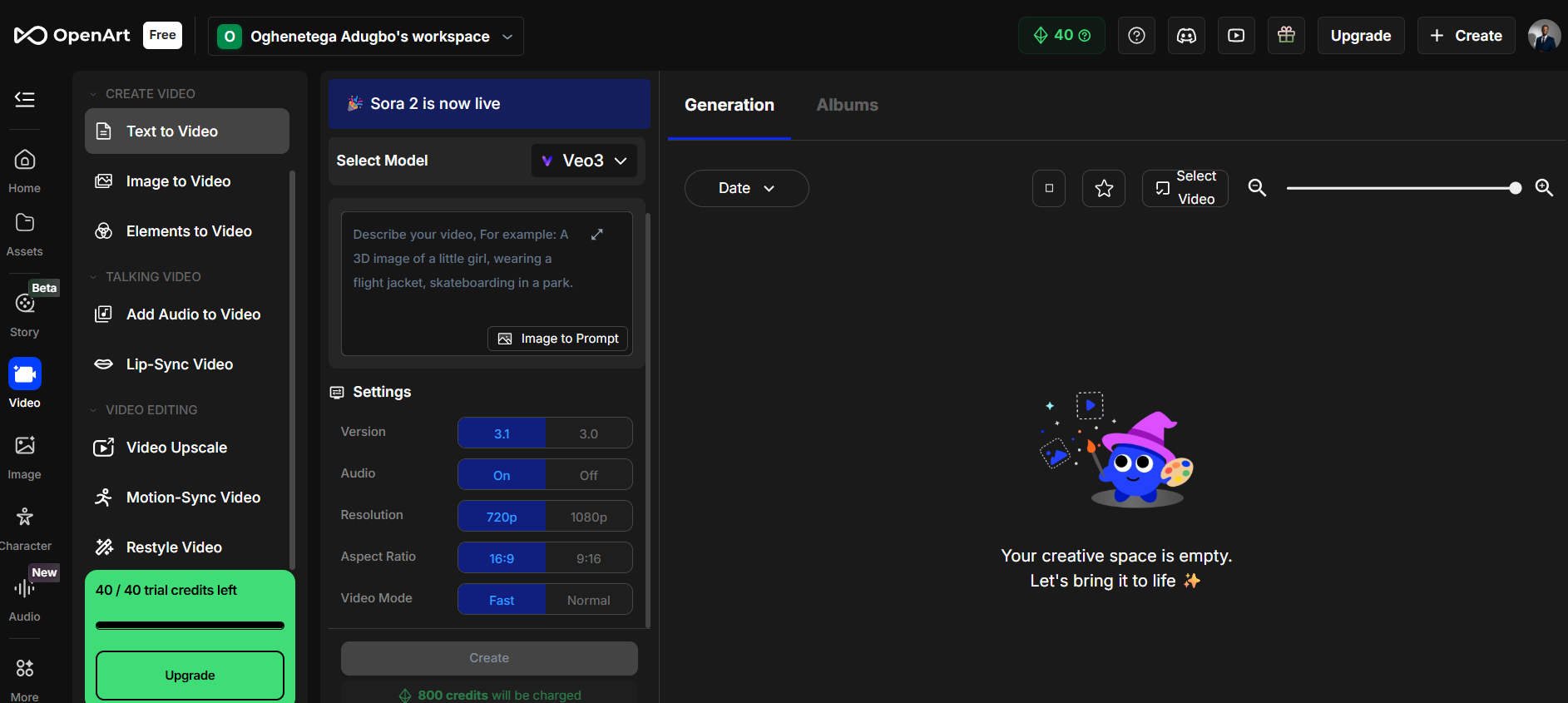
Basic setup in OpenArt (fast):
- Go to Video → choose Google VO 3.1.
- Click Text to start from a prompt (or Elements/Frames for image inputs).
- Set Aspect Ratio (16:9 for landscape, 9:16 for Shorts/Reels).
- Max out Resolution; keep Motion on “Normal” unless you want surreal.
- (Optional) Add Start Frame and End Frame images.
- Paste prompt. Add beats + ambient audio cues.
- Generate.
1 — Directed Dialogue (The Sea Captain)
Use this to see how VO 3.1 handles faces, voices, and camera beats.
Prompt (paste-ready):
A weathered sea captain with a thick gray beard and blue knitted hat stands at a ship’s railing, gesturing toward stormy ocean waves. Cinematic close-up with a slow dolly-in. Golden-hour lighting with dramatic shadows. He says: “The ocean teaches you respect one wave at a time.” Audio: ocean waves crashing, wind; no background music. Color palette: deep blues, warm amber, weathered browns. No subtitles.
Settings: highest resolution, Aspect Ratio: 16:9, Motion: Normal.
What to look for:
- Mouth sync + emotion line up with the face.
- Beard fibers, knit hat texture, weather on skin.
- Wind + wave ambience supports the shot without drowning the voice.
Why we like it: VO 3.1 respects specificity. If you write it like a director, it shoots it like one.
2 — Frames Mode (3 Images → 1 Scene)
We build a grounded micro-story using three stills.
Step 1: Generate references in OpenArt (Images tab)
- Subject: OpenArt Photorealistic → prompt: woman in her 20s
- Object: Cadream 4 → prompt: huge marble statue
- Setting: any photoreal model → prompt: a quiet park at sunset
Step 2: OpenArt → Video → VO 3.1 → Frames
- Upload the three images (order them as Subject, Object, Setting).
Prompt (paste-ready):
A marble statue stands in a quiet park at sunset. A woman looks up at it and says, “People once tried to capture feelings in stone — and somehow they did.” Natural ambience: distant birds, soft wind through trees. Handheld feel, warm light, gentle lens breathing.
Why it works: The three images anchor identity and place. VO 3.1 connects them into a believable moment.
The Feature That Changes Everything: Start & End Frames
Lock the exact opening and closing frames. VO 3.1 animates between them while preserving identity and layout. This unlocks:
- Logo reveals that stay on-brand.
- Product shots that remain consistent across multiple beats.
- Long-form continuity by chaining segments seamlessly.
Example A — Living Logo (Infinity)
Start image (made in OpenArt Images):
Aerial nighttime photograph of a giant glowing infinity symbol formed by thousands of artists in a city square, neon blues/purples/soft golds, luminous reflections, cinematic contrast, 4K, atmospheric haze, drone shot from directly above.
Video prompt (paste-ready):
The formation begins moving in synchronized waves. On one loop, people do slow, coordinated sit-ups, creating a ripple of motion; on the other, they rise and jump in rhythm. Their glowing tablets pulse brighter with each movement. Light travels along the infinity path like energy through a circuit: smooth, seamless, perfectly timed. Alternate waves symbolize constant creative flow. Loopable.
Use cases: Openers, idents, live visuals, brand social posts.
Example B — Product Spot with Two Frames
We’ll make a premium headphone ad by defining the first and last image.
Start frame: Headphones on a minimalist white stand in a bright white studio.
End frame: Same product on a solid black background (we flipped the product in OpenArt using Nano Banana with: “change the product environment to a solid black background, and turn the headphones around.”)
Video prompt (beat-by-beat):
- 0–2s: wide shot, slow dolly-in; emphasize ear-cushion mesh and polished aluminum under soft studio lighting.
- ~3s: fast, fluid 180° orbit; subtle motion blur; evolving reflections; background fades.
- Final: pull back to reveal the silhouette centered on black. Ultra-minimal, Apple-style. No subtitles. Subtle ambient hum + gentle whooshes.
Pro tip: After rendering, swap frames (end → start), add a new end frame, and keep going.
Extended Cut — From Studio to Space
New end frame: Headphones hovering above a slowly rotating Earth (rim-lit against space).
Prompt (continue):
- 0–2s: wide shot, slow dolly; highlight mesh + metal reflections.
- ~3s: 180° orbit; maintain clean lines.
- Final: pull back to reveal the headphones hovering above Earth. Ultra-crisp 1080p, 16:9. Minimalist, cinematic.
Why this sings: Start/End frames let you chain unlimited beats while staying perfectly on-model.
Steal-These Prompts (Copy/Paste)
Cinematic Talking Head:
[Use the sea captain prompt above as-is]
Logo Alive:
Starting on an aerial image of a glowing infinity logo formed by people… synchronized ripples… tablet screens pulse… energy travels along the curve… smooth and loopable.
Minimalist Product Orbit:
Start frame [white studio], End frame [pure black]. 0–2s slow dolly; ~3s 180° orbit; final pull-back to black. Shallow DOF, clean reflections, no subtitles, subtle whooshes.
Frames Story (3 Images):
Quiet park at sunset + marble statue + woman in her 20s. One contemplative line. Natural ambience, handheld feel, warm light.
Troubleshooting
- Identity drift? Lock start/end frames. Keep product/character descriptors identical across segments.
- Voice mismatch? Specify age, tone, and a short intent (“reflective,” “calm authority”).
- Chaotic camera? Give time-boxed beats (timestamps + verbs).
- Three frames feel random? Order them Subject → Object → Setting, then add one line that ties them.
- Too “AI”? Add real cues: lens breathing, slight handheld, micro-creases in fabric, skin specular highlights, environment sound.
Key Takeaways
- VO 3.1 gives film-grade control: you write beats, lock frames, and get coherent motion and sound.
- Start/End frames are the superpower for continuity, transitions, and brand-safe identity.
- Frames mode (3 images) turns mood boards into scenes in minutes.
- OpenArt keeps everything in one place so you can move from stills to finished video without losing the thread.
- Think like a director: timestamps, camera verbs, ambient audio, and a defined palette.
A Fast 7-Minute Flow
- Beat sheet: 2–4 sentences with timestamps.
- Stills: Generate subject, object, setting in OpenArt (plus product angles if needed).
- Frames: Choose your Start/End (and optional third).
- Prompt: Paste beats; specify audio + palette.
- Render: Watch for identity, lighting, and motion.
- Chain: Flip end → start; add a new end frame; continue the story.
- Publish: Trim, caption, ship.
Ready to make clips that feel captured, not concocted? Open OpenArt, select Google VO 3.1, lock your first and last image, and write like a director. The middle will behave.
Tega AdeyemiNovember 07, 2025.